


Installatiehandleiding digitaal instrumentenpaneel Passat B6
Deze stap-voor-stap gids legt compatibiliteit, installatievoorbereiding, bedradingsvoorzorgen, versie-specifieke overdrachtswerkzaamheden en vereiste instellingen na installatie uit voor geselecteerde voertuigen op het PQ-platform met het originele mechanische instrumentenpaneel.
Belangrijk: Bevestig vóór aankoop of installatie het exacte modeljaar, het originele type instrumentenpaneel, de dashboardstructuur en de indeling van de achterste connector. Deze upgrade is bedoeld voor ondersteunde voertuigen op het PQ-platform die oorspronkelijk een mechanisch wijzerinstrumentenpaneel gebruiken.
Hoe bevestigt u of deze LCD-cluster geschikt is voor uw voertuig?
Deze volledig LCD-instrumentencluster is ontworpen voor geselecteerde Passat B6, Passat B7 en oudere CC toepassingen op de PQ-platform. De juiste passvorm hangt van meer af dan alleen de voertuignaam. Het originele voertuig moet een mechanische naaldcluster gebruiken met een bijpassende dashboardbehuizingsstructuur en een compatibele configuratie van de achteraansluiting.
We hebben talloze eigenaars begeleid bij deze specifieke analog-naar-digital conversie. Hoewel de onderliggende technologie geavanceerd is, is de fysieke installatie eigenlijk heel eenvoudig. Door de onderstaande simpele volgorde te volgen, bereikt u een perfect resultaat van OEM-kwaliteit, gewoon in uw eigen garage.
Afhankelijk van de originele configuratie kan ondersteuning ook worden uitgebreid naar rechtse besturing, diesel- en hybrideversies. Voor kopers in het buitenland is de meest betrouwbare inbouwmethode om vóór het bestellen samen te letten op het bouwjaar van het voertuig, de originele vorm van het dashboard, het originele type instrumentencluster en de lay-out van de achterste connectoren.
Checklist met vereiste gereedschappen en uitrusting
Omdat dit systeem beschikt over een niet-destructieve plug-and-play-architectuur, heeft u geen soldeerbouten of draadkniptangen nodig. Verzamel vóór het starten van de installatie eenvoudig deze basisgereedschappen:
- T20 Torx-schroevendraaier: Nodig om de primaire originele bevestigingsschroeven van het instrumentencluster eenvoudig te verwijderen (een magnetische punt wordt sterk aanbevolen om te voorkomen dat onderdelen vallen).
- Kunststof demontagegereedschap: Essentieel om de OEM-dashboardbezel veilig los te maken zonder uw interieurafwerking te krassen.
- Microvezeldoek: Om over de stuurkolomkap te leggen, zodat de kunststofdelen beschermd blijven terwijl u de behuizing eruit schuift.
- Antistatische polsband (optioneel): Aanbevolen best practice voor het veilig hanteren van de hulp-PCB tijdens de overdracht.
Hoe verbetert deze upgrade de originele clusterervaring?
Niet-destructieve installatie
Geen boren, geen draden doorknippen, geen ECU-flashing en geen aanpassing van de originele voertuiggegevens.
Stabiel Linux-systeem
Ontworpen voor snelle opstart, stabiele werking en consistent langdurig gebruik.
10.3-inch HD-scherm
1920 × 720 resolutie met ingebouwde interfaces in Volkswagen- en Audi-stijl en ondersteuning voor bediening via het stuurwiel.
OEM-stijl integratie
Ontworpen om de waarschuwingslogica, voertuiginformatieweergave en een interieuruiterlijk als af fabriek te behouden.
Hoe controleert u de pasvorm voordat u koopt?
Voordat u een bestelling plaatst, moeten kopers zowel de voertuigspecificatie als de fysieke clusterstructuur bevestigen. Dit is de belangrijkste stap om compatibiliteitsfouten te voorkomen.
Voertuigspecificatiechecklist
- Bevestig het exacte modeljaar
- Bevestig linksgestuurd of rechtsgestuurd
- Bevestig benzine, diesel of hybride versie
Checklist clusterstructuur
- Controleer of het originele cluster een mechanische naaldstijl heeft
- Controleer of de vorm van de dashboardbehuizing overeenkomt
- Controleer of de lay-out van de achterste connector overeenkomt met de ondersteunde versie
Beste pasvorm voor internationale kopers
De meest nauwkeurige compatibiliteitscontrole is gebaseerd op het voertuigjaar, de dashboardfoto en de originele clusterfoto samen. Dit vermindert montagefouten, beschermt de efficiëntie van de installatie en helpt onnodige geschillen na verkoop te voorkomen.
Hoe is dit LCD-scherm getest op betrouwbaarheid?
De volgende Engelse testsamenvatting is gebaseerd op de testgrafiek van het product. Het helpt buitenlandse kopers om de elektrische, omgevings-, anti-interferentie- en duurzaamheidsvalidatie van dit Volkswagen LCD-instrumentenpaneel te begrijpen.
| Nee. | Testartikel | Testomstandigheden | Resultaat |
|---|---|---|---|
| 1 | Basisfunctietest | Bevestig alle basisfuncties één voor één. | PASS |
| 2 | Test van het werkspanningsbereik | Werkt normaal binnen het voedingsbereik van 9V tot 16V. | PASS |
| 3 | Rimpelingstest | 1. Hoogfrequente rimpeltest 2. Laagfrequente rimpeltest | PASS |
| 4 | Vermogensvariatietest | Gesimuleerde omstandigheden met stroomschommelingen in auto's. | PASS |
| 5 | Elektrostatische ontladingstest | 1. Luchtafvoer: Stroomloze toestand: 25KV Gevoede toestand: 10KV 2. Contactontlading: Stroomloze toestand: 15KV | PASS |
| 6 | Opslag bij lage temperatuur | 48 uur bewaard bij -40 °C. | PASS |
| 7 | Werking bij lage temperatuur | Werkt 24 uur in een omgeving van -30°C. | PASS |
| 8 | Werking bij hoge temperaturen | Werkt 24 uur in een omgeving van 70°C. | PASS |
| 9 | Opslag bij hoge temperatuur | 48 uur bewaard in een omgeving van 85°C. | PASS |
| 10 | Test elektromagnetische interferentie (intercominterferentie) | Geen interferentie met de geteste eenheid terwijl de intercom actief is. | PASS |
| 11 | Herhaalde aan/uit-test | Eén miljoen herhaalde stroomcycli. | PASS |
| 12 | Stresstest software | Continue CAN-gegevensstresstest. | PASS |
| 13 | DDR en Flash lezen/schrijven stresstest | Stresstest voor opslaghardware voor lezen/schrijven. | PASS |
Basisfunctietest
Bevestig alle basisfuncties één voor één.
Test van het werkspanningsbereik
Werkt normaal binnen het voedingsbereik van 9V tot 16V.
Rimpelingstest
1. Hoogfrequente rimpeltest
2. Laagfrequente rimpeltest
Vermogensvariatietest
Gesimuleerde omstandigheden met stroomschommelingen in auto's.
Elektrostatische ontladingstest
1. Luchtafvoer:
Stroomloze toestand: 25KV
Gevoede toestand: 10KV
2. Contactontlading:
Stroomloze toestand: 15KV
Opslag bij lage temperatuur
48 uur bewaard bij -40 °C.
Werking bij lage temperatuur
Werkt 24 uur in een omgeving van -30°C.
Werking bij hoge temperaturen
Werkt 24 uur in een omgeving van 70°C.
Opslag bij hoge temperatuur
48 uur bewaard in een omgeving van 85°C.
Test elektromagnetische interferentie (intercominterferentie)
Geen interferentie met de geteste eenheid terwijl de intercom actief is.
Herhaalde aan/uit-test
Eén miljoen herhaalde stroomcycli.
Stresstest software
Continue CAN-gegevensstresstest.
DDR en Flash lezen/schrijven stresstest
Stresstest voor opslaghardware voor lezen/schrijven.
Hoe bereid ik het voertuig voor op het verwijderen van het originele cluster?
Een goede voorbereiding is belangrijk omdat problemen met de installatie vaak al beginnen voordat het oorspronkelijke cluster is verwijderd. De volgende stappen moeten eerst worden uitgevoerd om een soepel, foutloos proces te garanderen.
Stap 1: Ontlaad statische elektriciteit
Maak uw lichaam vrij van statische elektriciteit voordat u de printplaat demonteert en installeert. Houd de printplaat bij het hanteren alleen bij de randen vast en vermijd direct contact met elektronische onderdelen.
Stap 2: Laat de oorspronkelijke clusterluidspreker zitten
De originele zoemer of luidspreker van de instrumentengroep mag niet worden verwijderd. Verwijdering kan een storingswaarschuwing in de instrumentengroep veroorzaken.
Stap 3: Waarschuwingsinstellingen aanpassen voor verwijdering
Voordat u het originele cluster verwijdert, stelt u eerst de waarschuwing voor winterbanden en de snelheidswaarschuwing in op hun maximale waarden en schakelt u daarna beide functies uit in het menu van het multifunctionele display. Deze stap moet worden voltooid voordat het originele cluster fysiek wordt verwijderd.
Hoe voltooi je de eerste installatie-instellingen?
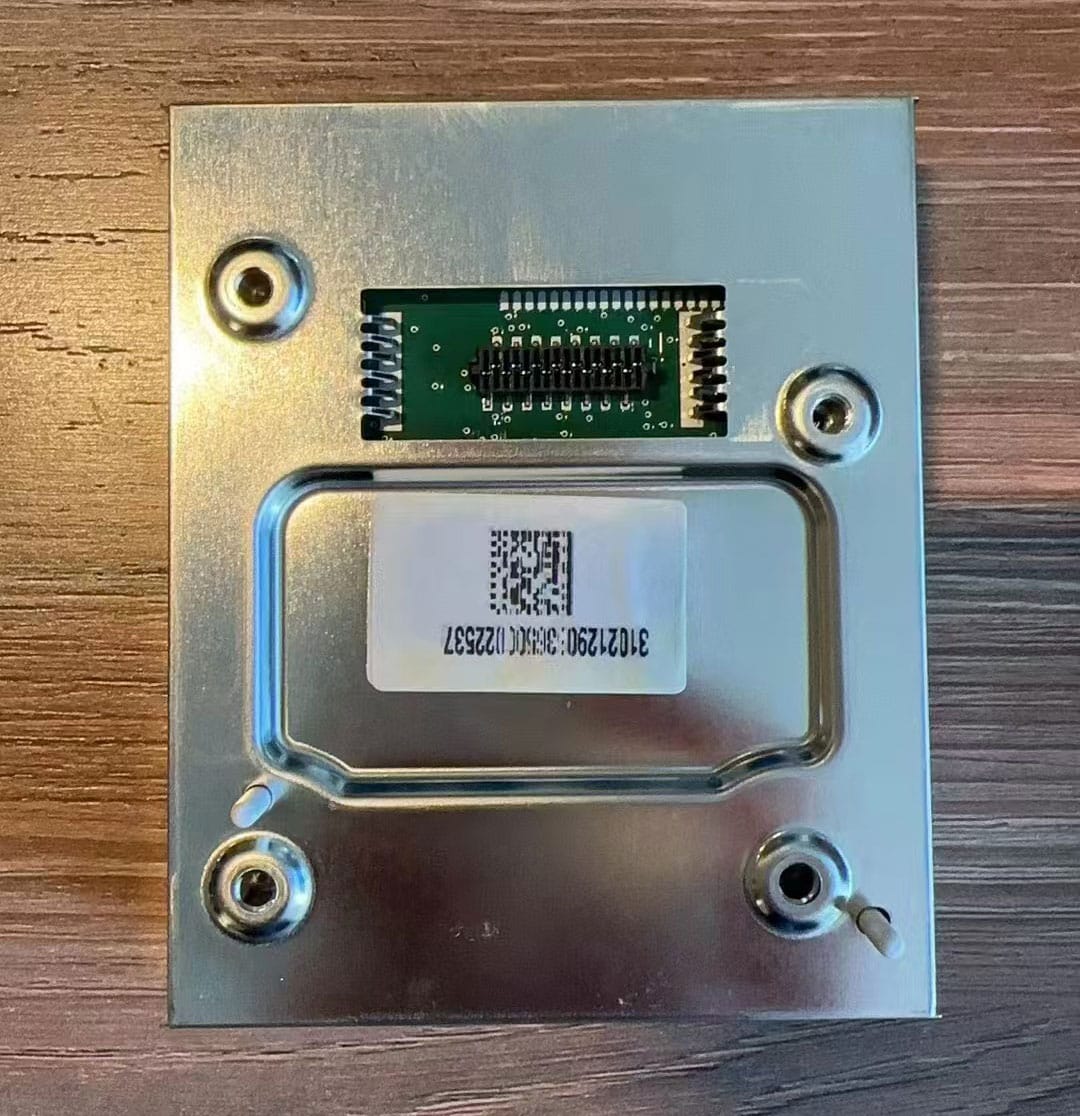
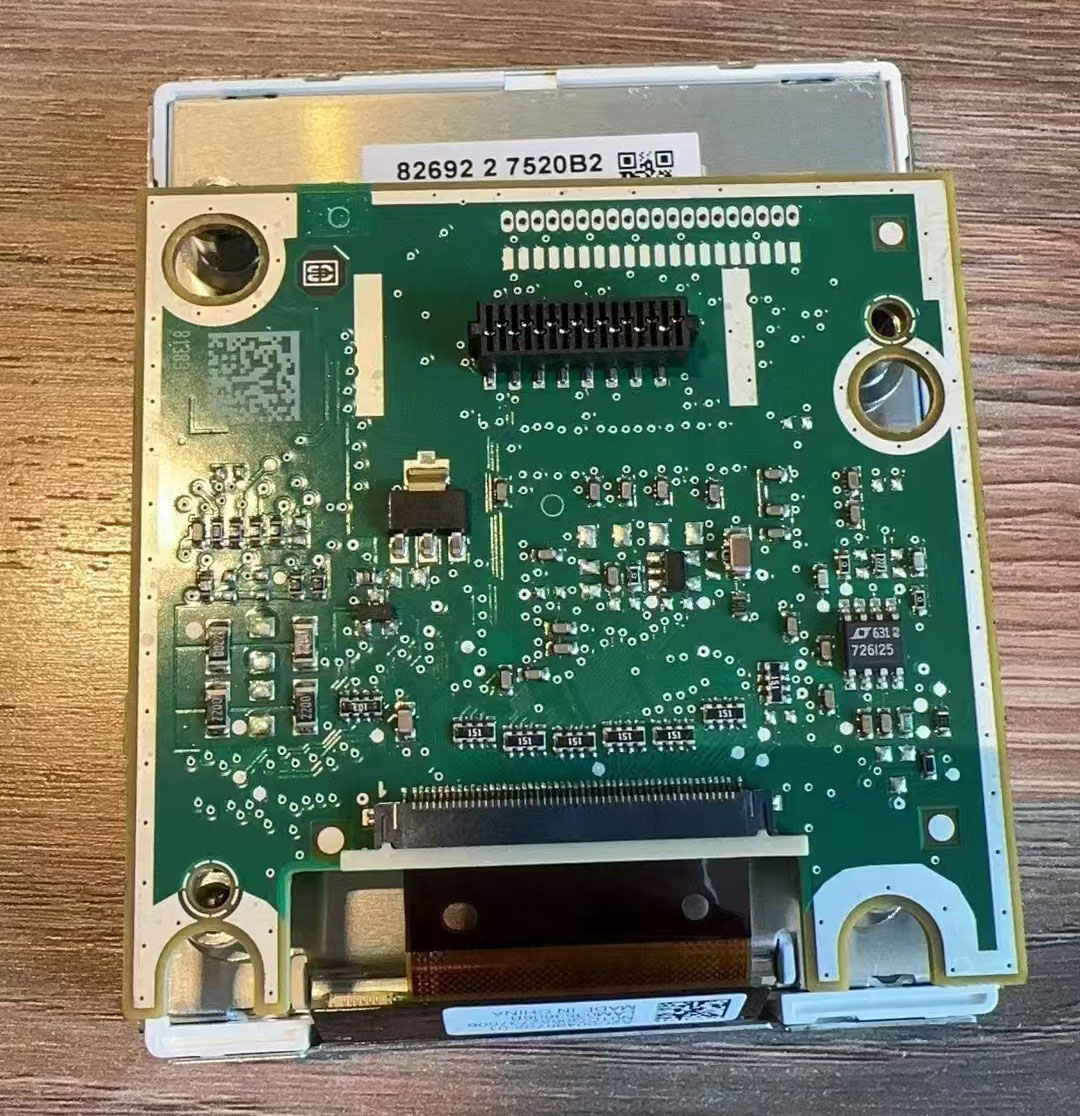
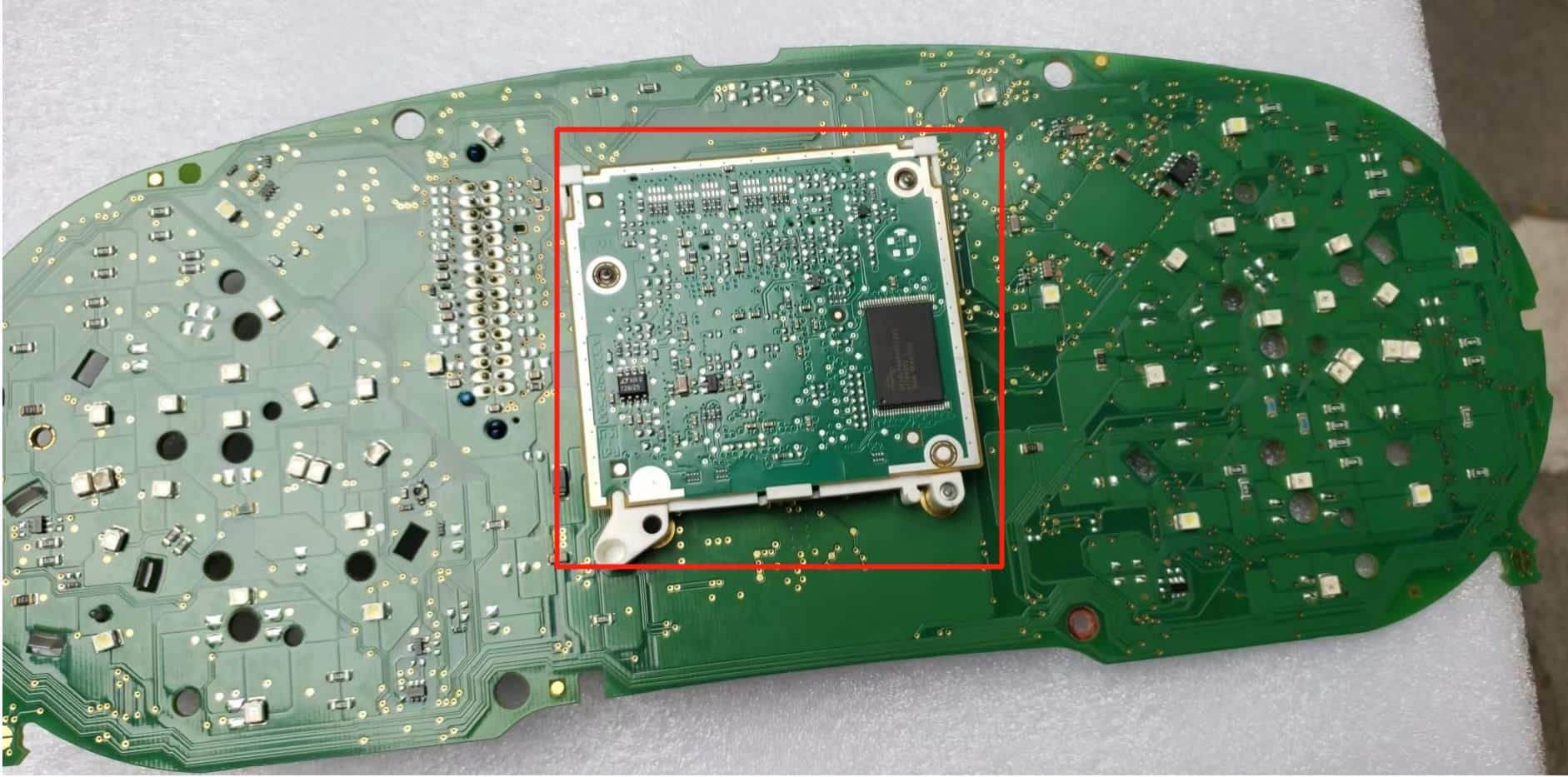
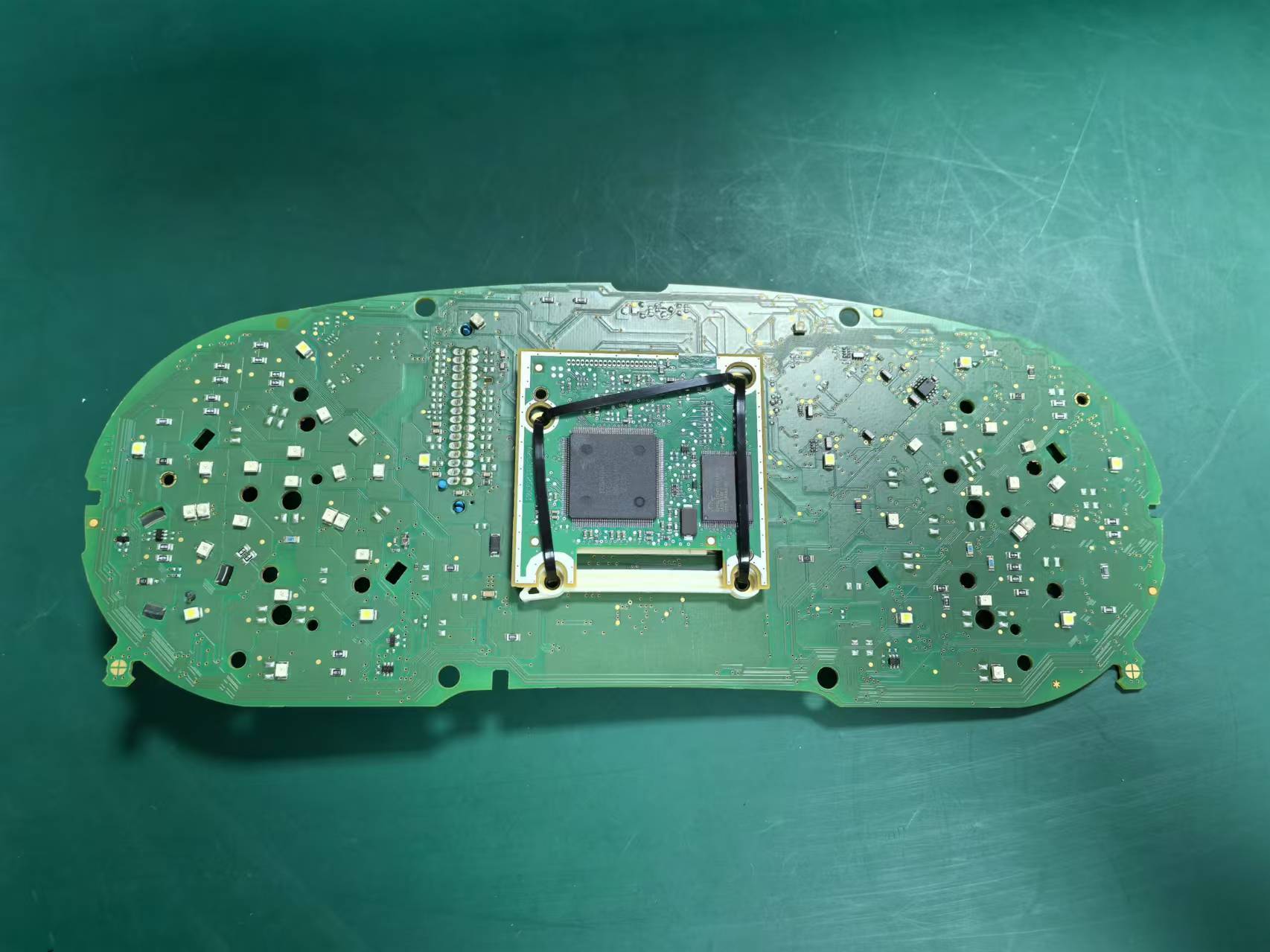
Hoe zet je de extra printplaat over op bepaalde clusters met hogere specificaties?
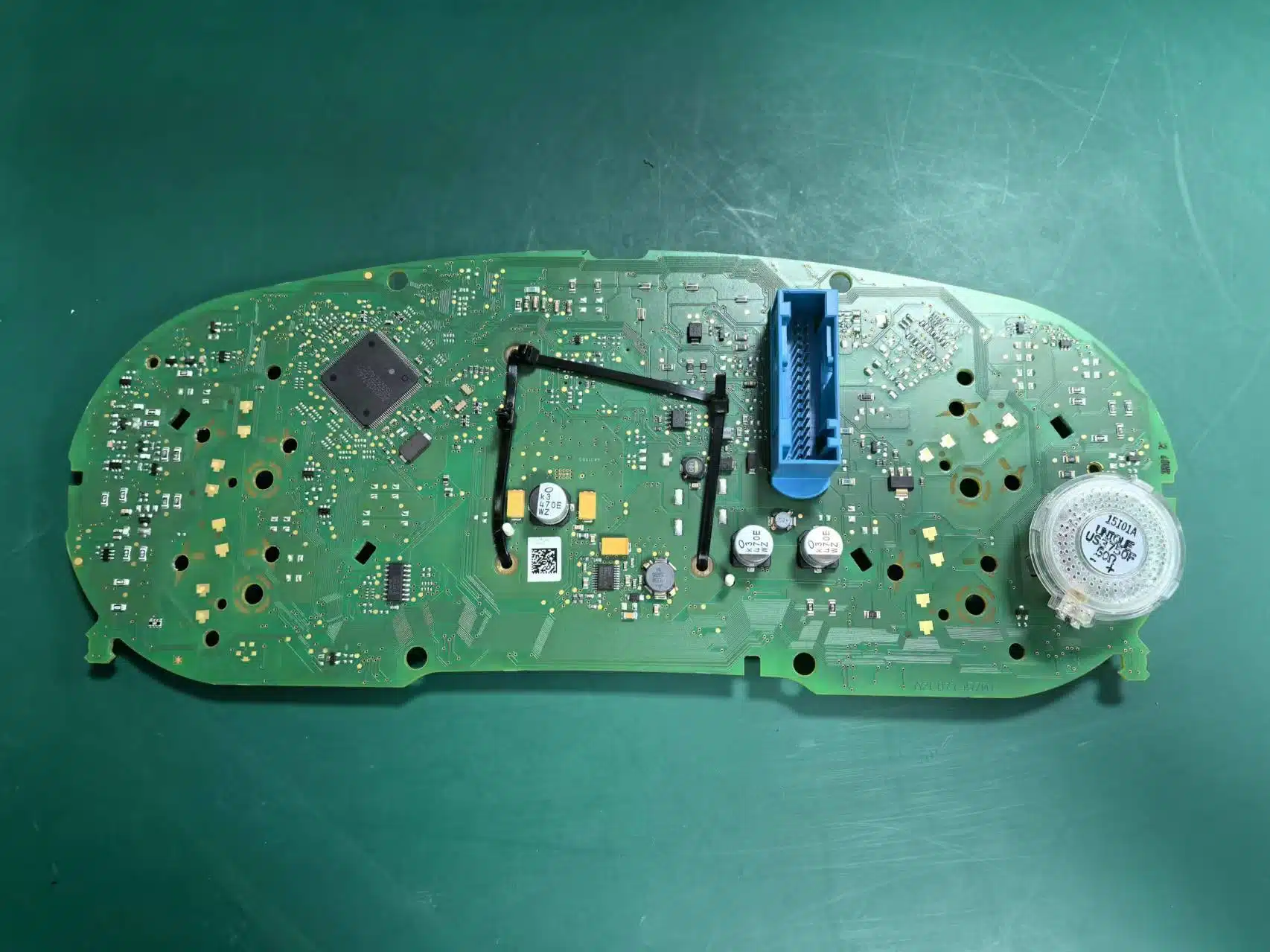
Sommige fabrieksmechanische clusters met hogere specificaties bevatten achter het originele kleine display een extra kleine printplaat. Als jouw originele cluster deze printplaat heeft, moet deze tijdens de installatie correct worden overgezet en vastgezet in het nieuwe LCD-cluster.
Als deze printplaat ontbreekt, verkeerd is geïnstalleerd of tijdens de montage wordt vergeten, kan de brandstofniveauweergave onnauwkeurig worden en kan het cluster een storingswaarschuwing weergeven. Als het originele cluster deze printplaat niet bevat, is deze stap niet nodig. Geen zorgen, het overzetten is een eenvoudig Plug-and-Play-proces waarvoor geen geavanceerde vaardigheden nodig zijn.
Hoe de USB-kabels correct te routeren?
De LCD-cluster bevat twee USB-kabels: één voor beperkt systeemupgradegebruik en één voor gebruik met schermspiegeling. Deze kabels moeten netjes worden geleid en in het opbergvak onder de linkerzijde van het stuur worden geplaatst, zodat de installatie schoon, toegankelijk en consistent blijft met een OEM-achtige afwerking.
Hoe repareer je een brandstofmeter die na installatie niet vol aangeeft?
Als de brandstoftank na installatie vol is, maar de meter niet tot volle schaal komt, moet de capaciteit van de brandstoftank worden gekalibreerd in de systeeminstellingen. Dit is een configuratieprobleem en moet worden gecontroleerd voordat wordt aangenomen dat er een hardwareprobleem is.
Stappen voor kalibratie van de brandstofmeter
- Vul de brandstoftank volledig.
- Rijd enkele honderden meters met het voertuig.
- Ga naar het menu met rijgegevens.
- Open het gedeelte met de hervulbare hoeveelheid.
- Lees de resterende hervulbare hoeveelheid die daar wordt weergegeven.
- Voer die waarde in bij Settings → Configuration Calibration → Fuel Tank Capacity.
- Wanneer de waarde correct is, moet de hervulbare hoeveelheid nul worden en moet de brandstofmeter normaal worden weergegeven.
Hoe problemen met de knipperlichtweergave na installatie oplossen?
Op het PQ-platform mag de fysieke lichtoptie in de instellingen niet worden ingeschakeld. Als deze is ingeschakeld, kan de knipperlichtindicator mogelijk niet correct worden weergegeven. Deze instelling moet worden gecontroleerd wanneer het weergavegedrag na installatie abnormaal lijkt.
Hoe de weergave van de voertuigafbeelding corrigeren?
Als de in de interface weergegeven voertuigafbeelding niet overeenkomt met de werkelijke auto, ga dan naar Instellingen → Voertuigmodelselectie, kies het juiste model, schakel vervolgens het contact uit, vergrendel het voertuig en wacht een paar minuten totdat de wijziging is toegepast.
Veelgestelde vragen
Heeft deze LCD-cluster draadknippen nodig voor installatie?
Nee. De installatie maakt gebruik van een niet-destructieve Plug-and-Play-kabelboom, wat betekent dat u geen van de fabriekskabels hoeft door te verbinden of door te knippen.
Is VCDS-codering of ECU-flashing vereist?
Er is geen complexe codering of ECU-flashing nodig. De firmware is ontworpen om automatisch te communiceren met de gateway van uw voertuig voor standaardfuncties.
Hoe controleer ik de compatibiliteit voor mijn Passat of CC?
Controleer of uw originele voertuig een mechanische naaldklok heeft, overeenkomt met de ondersteunde modeljaren en aansluit bij de fysieke dashboardstructuur die in onze fitmentgids wordt getoond.
Zijn LHD (Left-Hand-Drive) en RHD (Right-Hand-Drive) versies hetzelfde?
Nee, ze zijn niet uitwisselbaar vanwege de fysieke vorm van de dashboardrand. U moet de exacte versie bestellen die overeenkomt met uw stuurwielconfiguratie.
Zullen mijn OEM-waarschuwingslampjes nog steeds correct functioneren?
Ja. Het protocol is ontwikkeld om de essentiële logica van waarschuwingslampjes, waarschuwingen bij geopende deuren en informatie van de originele body control module (BCM) volledig te behouden.
Waarom is mijn brandstofmeter onnauwkeurig na installatie?
Dit komt meestal doordat de tankinhoud moet worden gekalibreerd in de display-instellingen, of (bij high-line modellen) de originele hulp-PCB niet correct is overgezet.








Add comment
Je moet ingelogd zijn op om een reactie te plaatsen.