


Volkswagen Lavida 2013-2017 installatie van het digitale instrumentencluster: upgradehandleiding in 17 stappen
Volkswagen Lavida 2013-2017 digitale clusterinstallatie met 17 echte stappen
Deze Volkswagen Lavida 2013-2017 digitale clusterinstallatie De gids behandelt de volledige PQ-platform upgrademethode met 17 echte installatiestappen, overdracht van het originele bord, controles van het hulpboard, USB-routering, kalibratie en eindtesten.
De gids is gebaseerd op iKAGOO's daadwerkelijke Lavida-installatiefoto's, technische video's en after-salesprocedure. Het is bedoeld voor voertuigen die nog steeds het bijbehorende originele mechanische instrumentencluster gebruiken.
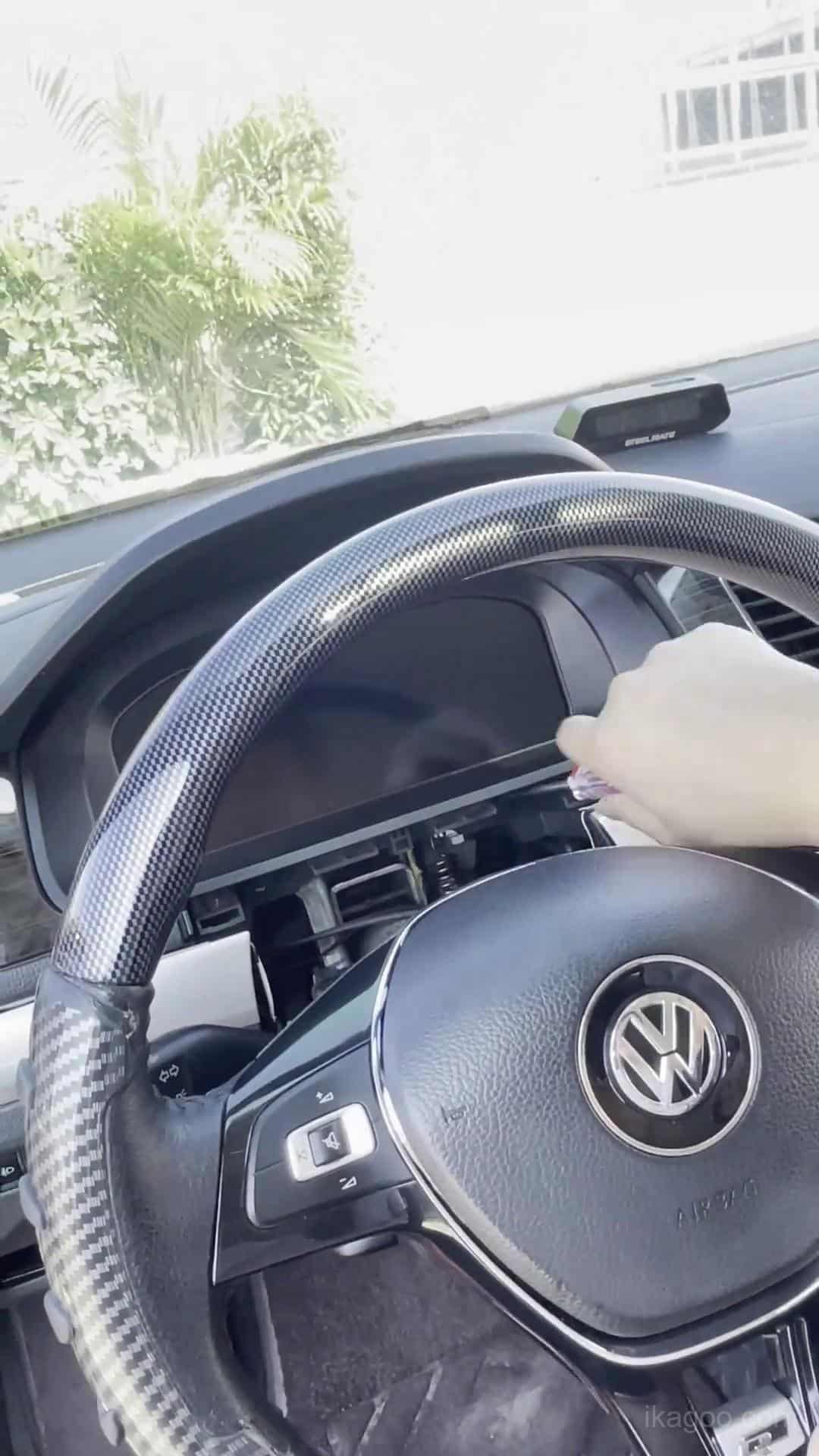
Hoe werkt de Volkswagen Lavida 2013-2017 digitale clusterinstallatie?
Korte antwoord: Bevestig eerst het originele mechanische cluster, voltooi de voorbereiding van het originele waarschuwingsmenu, verwijder het cluster, breng de vereiste originele elektronica over op een schone werkbank, controleer het optionele hulpboard, monteer het digitale cluster opnieuw, routeer beide USB-kabels en test het systeem voordat u de dashboardbekleding terugplaatst.
De klus is niet klaar wanneer het display voor het eerst wordt ingeschakeld. Brandstofkalibratie, fysieke lichtinstellingen, voertuigmodelselectie en definitieve waarschuwings-/displaycontroles kunnen nog steeds nodig zijn.
Volkswagen Lavida 2013-2017 digitale clustercompatibiliteit
Gebruik deze installatiemethode wanneer
- Het voertuig is een Volkswagen Lavida 2013-2017.
- Het originele dashboard gebruikt het bijbehorende PQ-platform mechanische cluster.
- De vorm van het originele cluster komt overeen met de installatiereferenties hieronder.
- Het voertuig is niet omgebouwd naar een andere clusterarchitectuur.
Stop en controleer eerst wanneer
- Het originele instrumentencluster ziet er anders uit dan de referentiefoto's.
- Het cluster of dashboard is al aangepast.
- Eerdere aftermarket-bedrading heeft de instrumentaansluitroute gewijzigd.
- U kunt de oorspronkelijke clusterarchitectuur niet identificeren.
Belangrijk: “plug-and-play” betekent dat de ondersteunde installatie geen doorknippen of splitsen van de originele voertuigkabelboom vereist. Het verwijderen van het dashboard, het overbrengen van originele componenten, het routeren van USB-kabels en kalibratie maken nog steeds deel uit van de installatie.
Gereedschap en voorbereiding voor installatie
Basisgereedschap
- Plastic afwerkingsgereedschap
- Geschikte schroevendraaiers
- Schone gewatteerde werkbank
- Goed werkend licht
Omgaan met elektronica
- Ontlaad eerst statische elektriciteit
- Houd printplaten bij de randen vast
- Raak componenten niet direct aan
- Druk nooit op het LCD-scherm
Vóór het sluiten van het dashboard
- Controleer alle connectors
- Houd beide USB-kabels toegankelijk
- Voltooi de eerste stroomtest
- Sluit bekleding pas na geslaagde test
Verwijder de originele instrumentzoemer niet. Het maakt deel uit van de behouden originele hardware-route en moet geïnstalleerd blijven.
Volkswagen Lavida Digitaal Cluster Installatieproces
Voltooi de waarschuwingsinstellingen vóór verwijdering
Doe dit terwijl het originele mechanische instrumentencluster nog is geïnstalleerd en functioneert.
- Zet de waarschuwing winterbanden naar de maximaal beschikbare waarde.
- Zet de waarschuwing snelheidslimiet naar de maximaal beschikbare waarde.
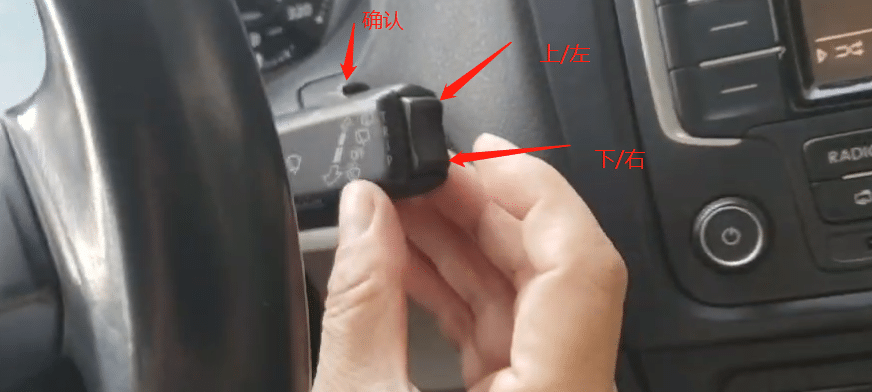
- Ga naar het menu met de multifunctionele snelheidslimiet.
- Beide waarschuwingsfuncties schakelen uit.
- Begin pas daarna met het verwijderen van het originele instrumentencluster.
Controle van voltooiing: beide waarschuwingsroutes zijn voorbereid terwijl het originele clustermenu nog beschikbaar is.
Dashboardafwerking en origineel cluster verwijderen
De eerste fysieke fase is gecontroleerde toegang tot het dashboard. Forceer het instrumentencluster niet door bekleding die niet volledig is losgemaakt.
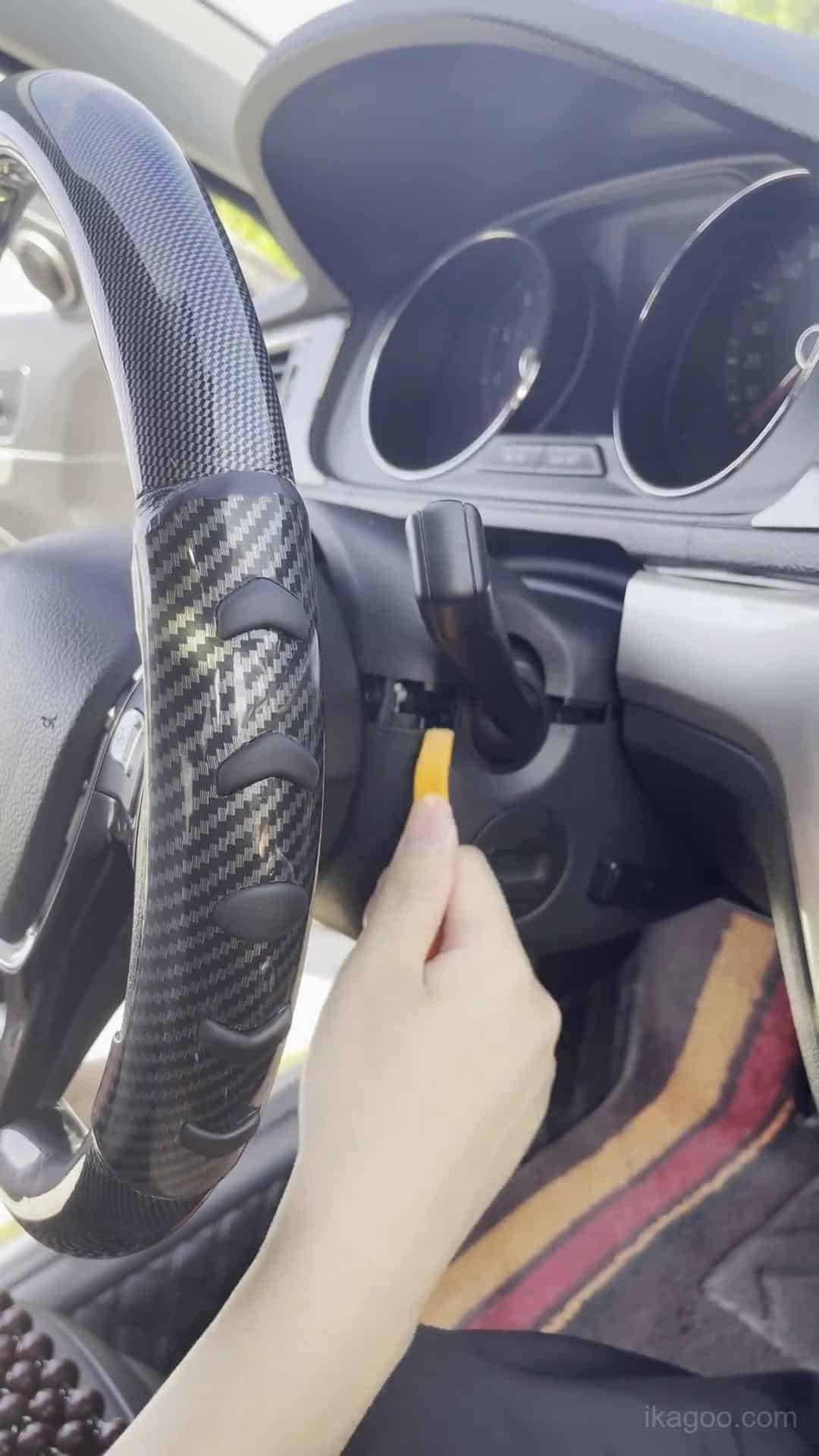
Stap 1. Bevestig het originele mechanische cluster
Vergelijk het originele clusterfront, de omliggende dashboardbekleding en de instrumentopening met deze installatieroute voordat u iets verwijdert.
Maak vóór de start een duidelijke foto van het originele dashboard en cluster. Dit biedt een nuttig overzicht van eventuele waarschuwingsindicaties of de bestaande dashboardconditie.
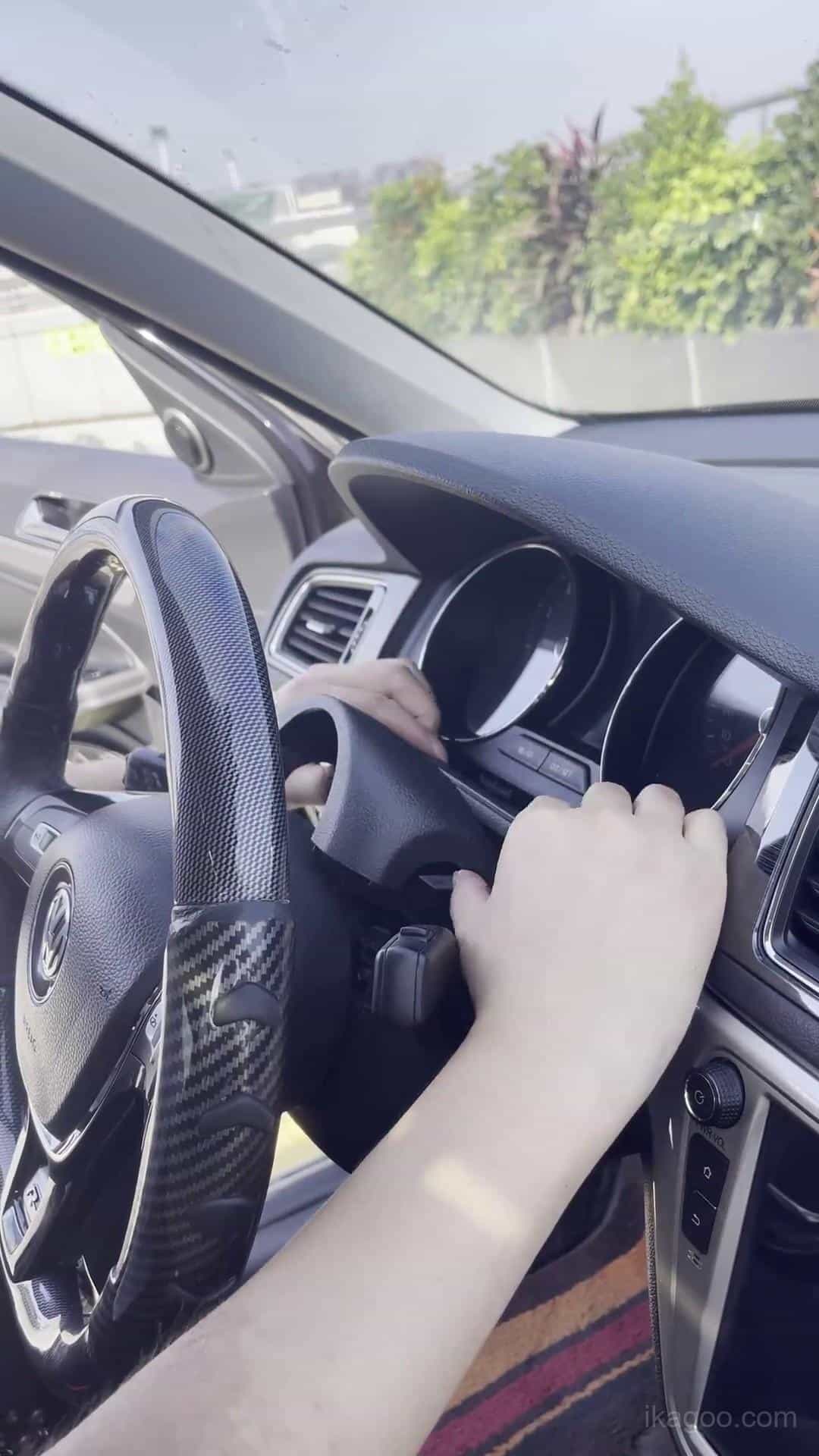
Stap 2. Begin met het losmaken van het dashboardpaneel
Gebruik een plastic gereedschap voor het verwijderen van panelen en maak het omliggende paneel geleidelijk los. Werk vanaf de paneelverbindingen en bevestigingspunten in plaats van zware hefboomkracht uit te oefenen op zichtbare paneeloppervlakken.
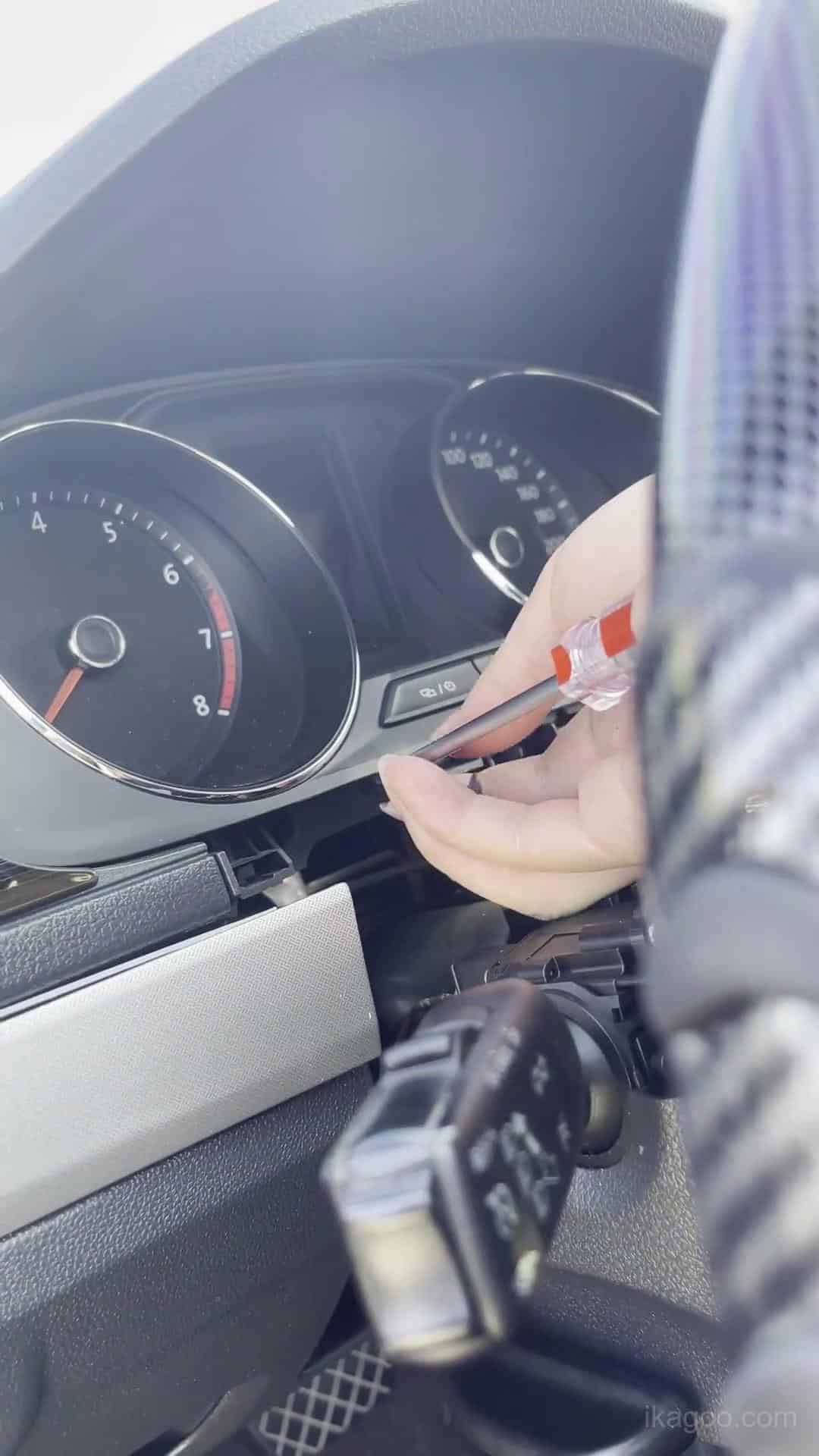
Stap 3. Ga verder met het openen van de clusteromlijsting
Maak de omliggende bekleding gelijkmatig los. Trek niet één kant naar buiten terwijl de andere kant stevig vast blijft zitten.
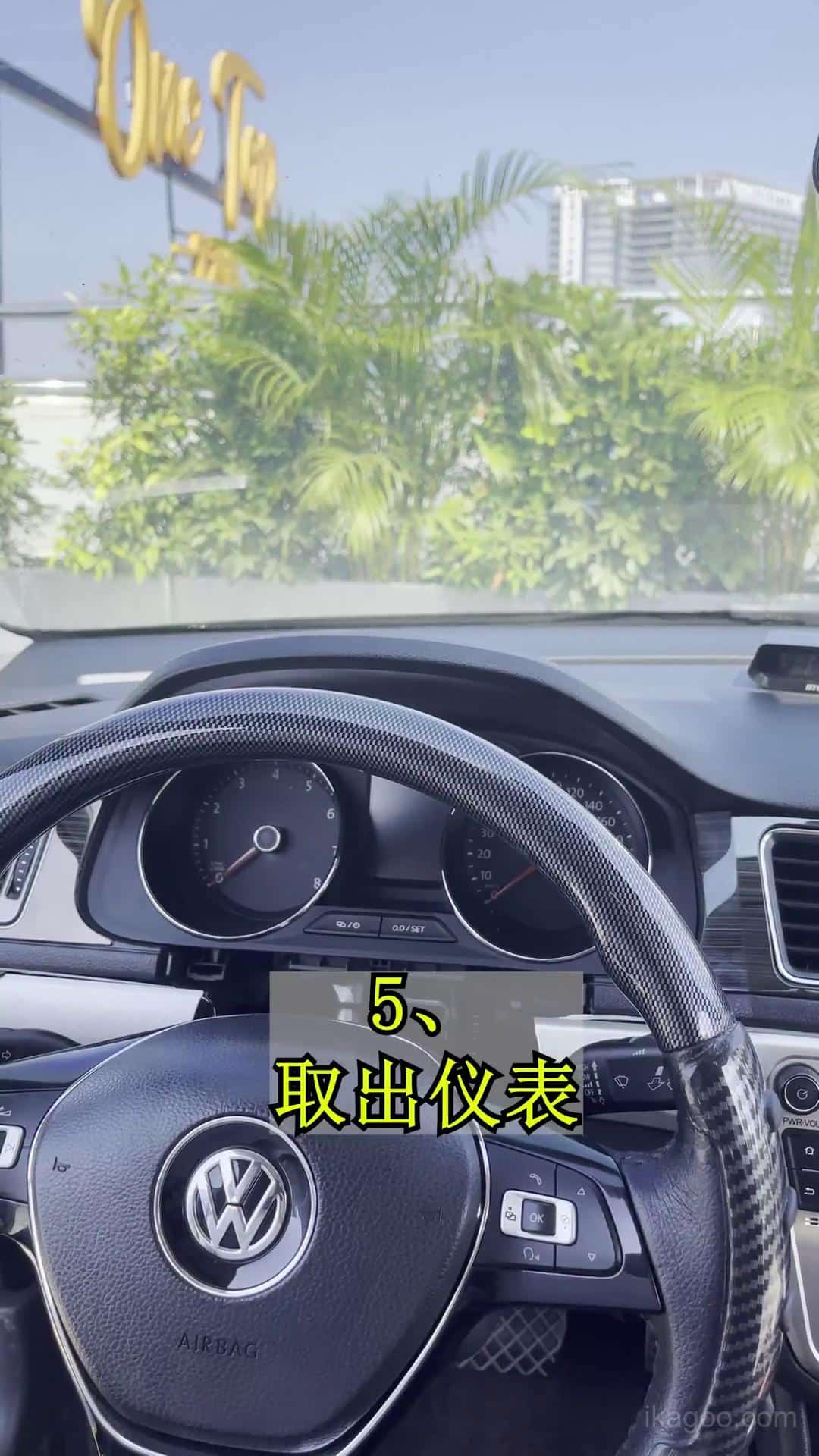
Stap 4. Het oorspronkelijke cluster volledig blootleggen
Verwijder voldoende omliggende bekleding zodat het originele cluster naar voren kan bewegen langs zijn normale verwijderingspad zonder te schrapen of de rand te forceren.
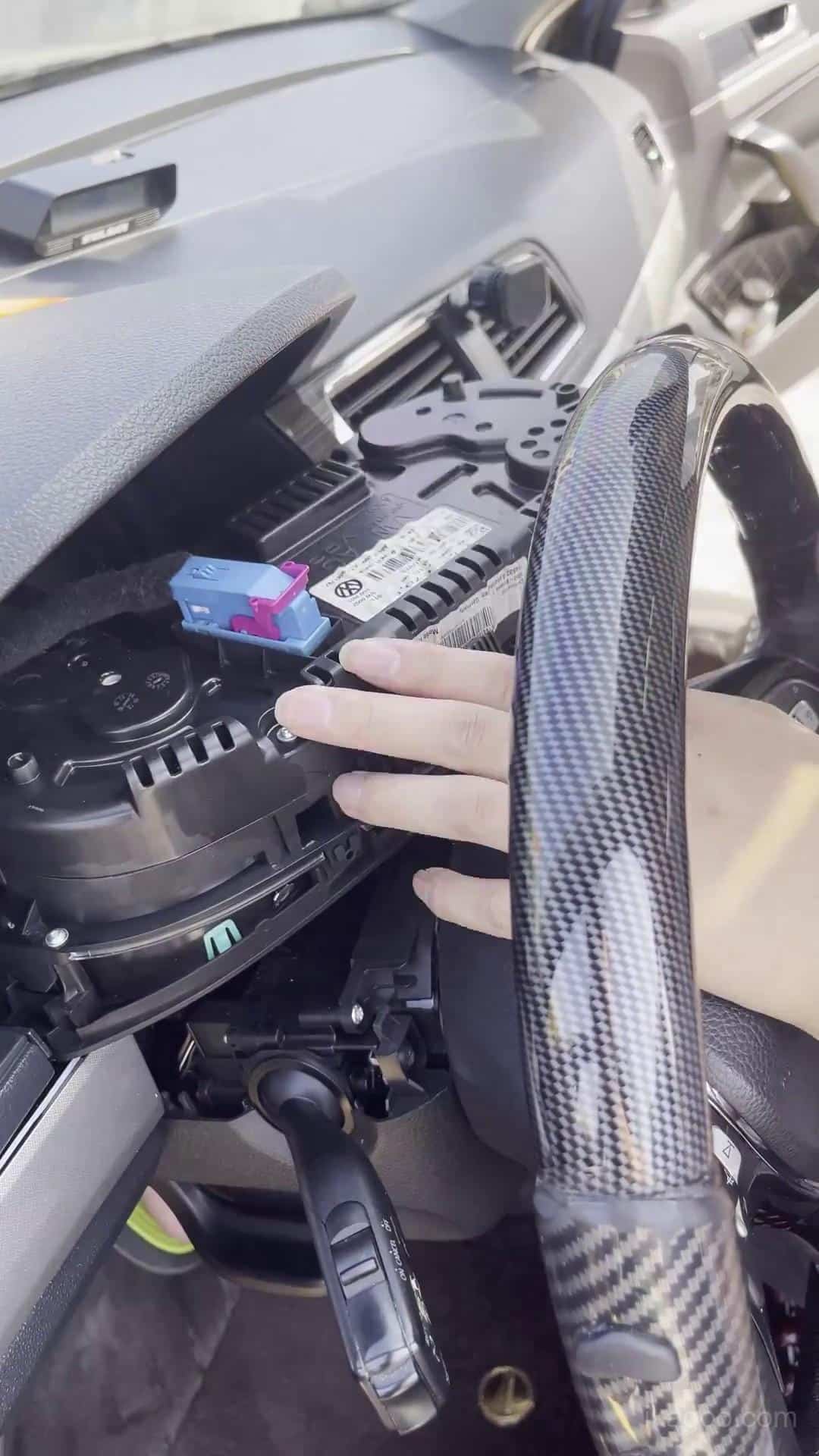
Stap 5. Verwijder het originele mechanische cluster
Breng het cluster voorzichtig naar voren en ondersteun het gewicht terwijl u de originele connector loskoppelt. Laat het cluster niet aan de kabelboom hangen.
Overdracht van originele printplaat en werkbankwerkzaamheden
Dit is het meest gevoelige deel van de installatie van het digitale cluster voor de Volkswagen Lavida 2013-2017, omdat vereiste originele elektronica behouden en correct geïnstalleerd moet worden.
Antistatische bescherming: ontlaad statische elektriciteit van uw lichaam voordat u de originele PCB aanraakt en houd elektronische boards alleen bij de randen vast.
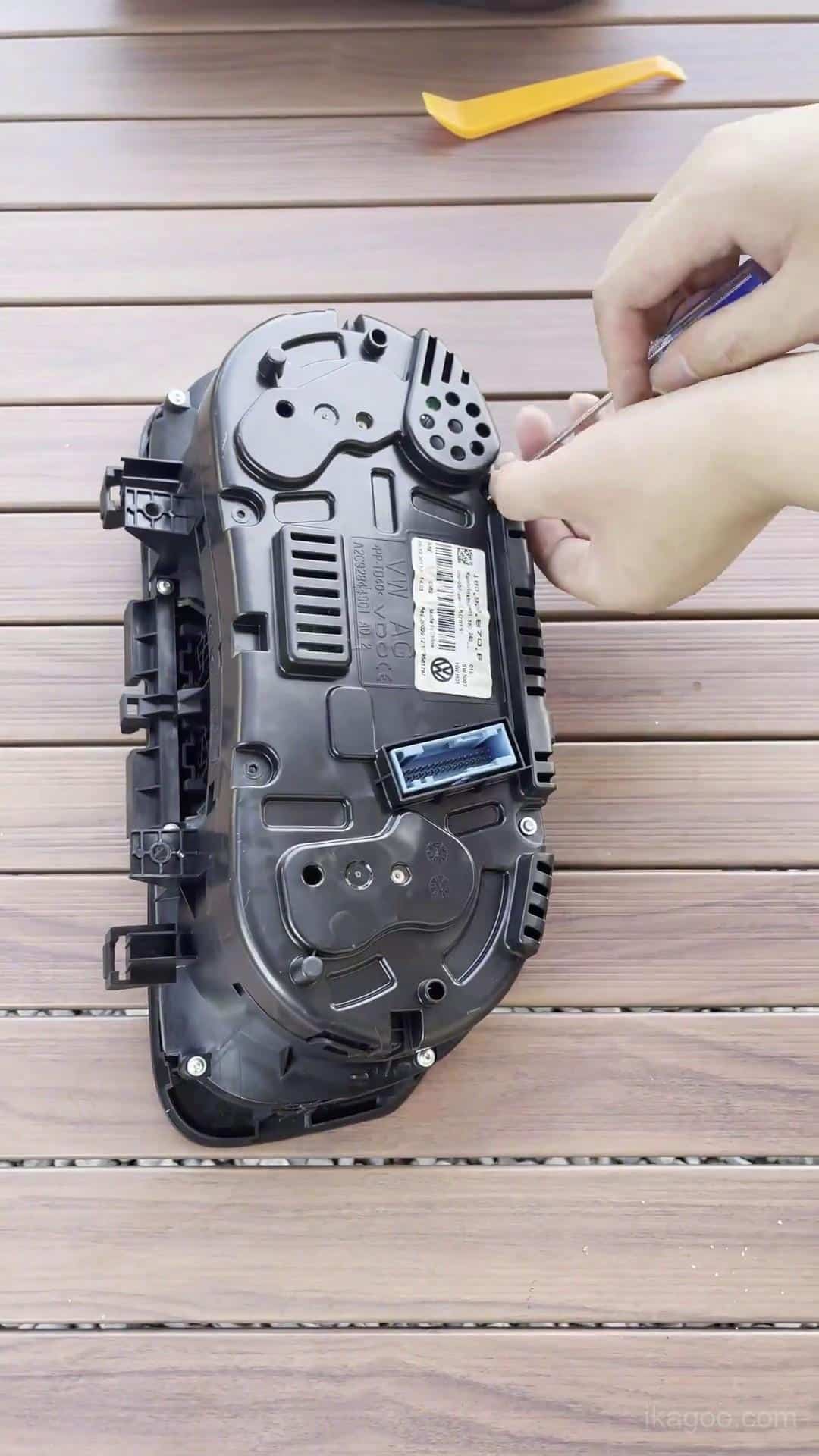
Stap 6. Verplaats het originele cluster naar een schone werkbank
Voer de interne werkzaamheden uit op een schoon, zacht oppervlak. Organiseer verwijderde schroeven en onderdelen voordat u de behuizing opent.
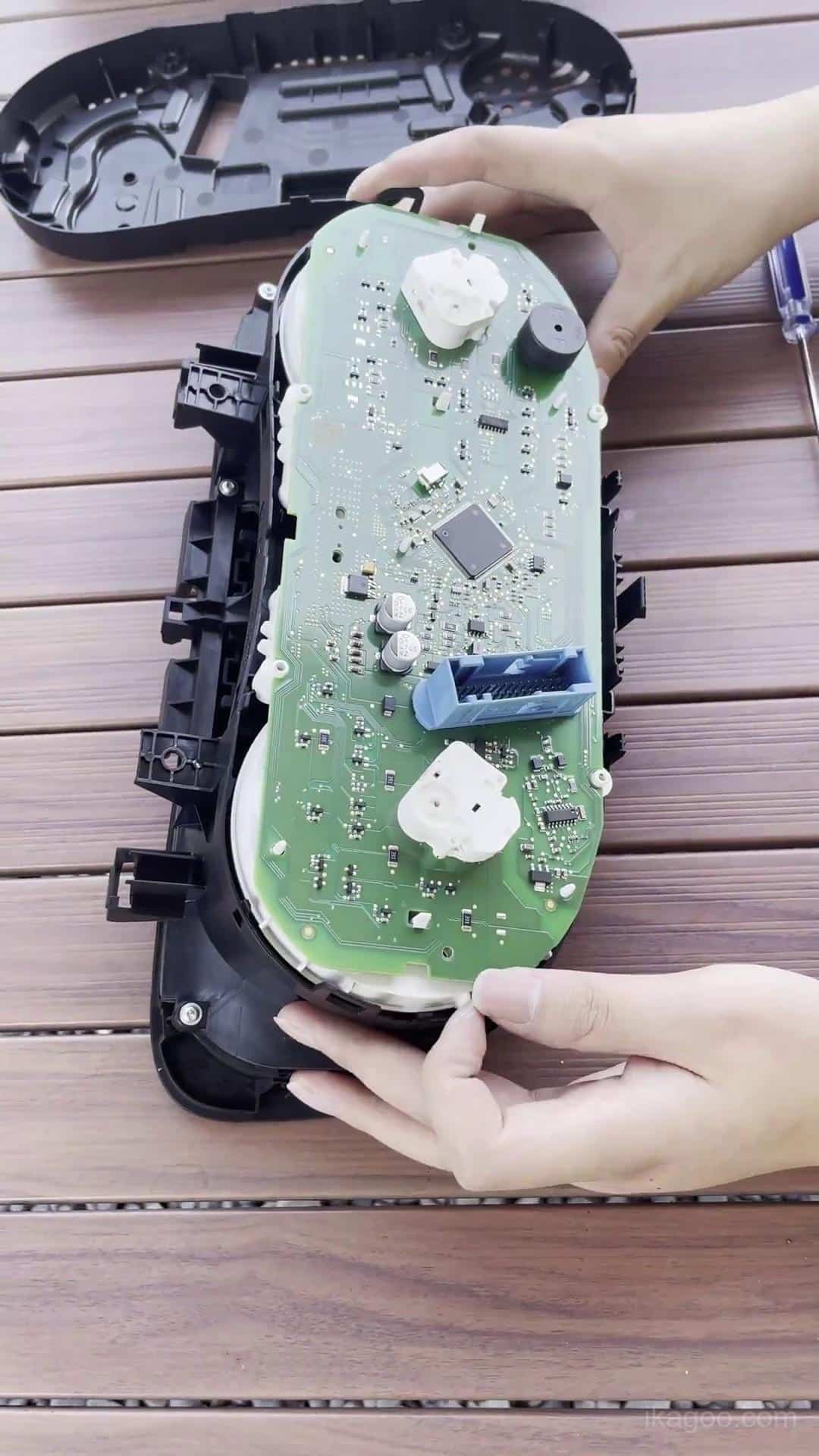
Stap 7. Open de oorspronkelijke clusterbehuizing
Maak de behuizingsclips en bevestigingsmiddelen methodisch los. Als de behuizing niet vanzelf loskomt, lokaliseer dan het resterende bevestigingspunt in plaats van het te forceren.
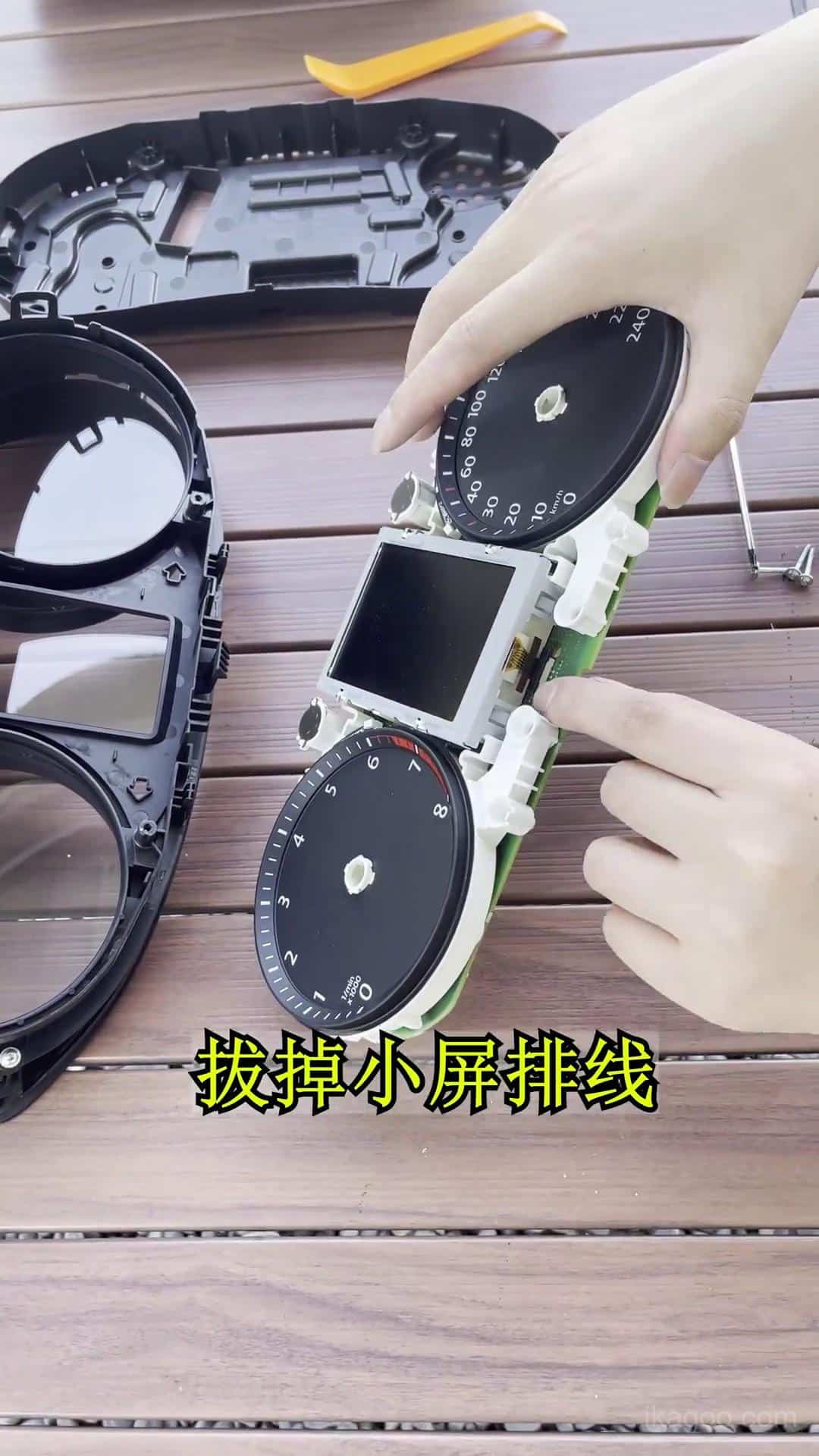
Stap 8. Toegang tot de originele elektronica
Identificeer het vereiste pad naar de originele printplaat voordat u componenten loskoppelt. Vermijd direct contact met PCB-componenten of blootliggende contacten.
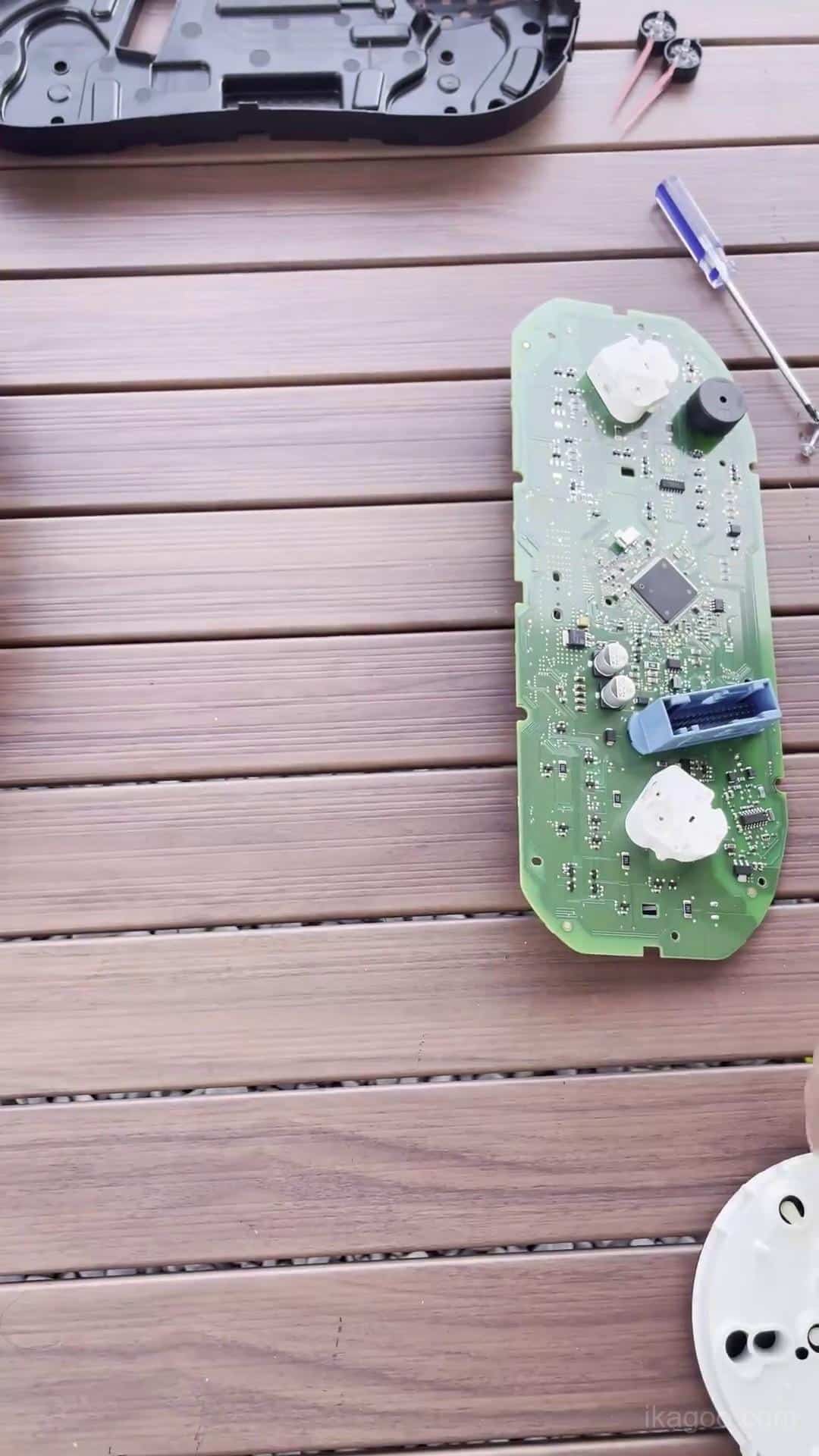
Stap 9. Draag de vereiste originele elektronica over
Verplaats de vereiste behouden elektronische componenten naar de upgrade digitale clusterassemblage en plaats ze natuurlijk op hun beoogde montagelocaties.
Zorg ervoor dat alle connectoren volledig vastzitten en geen kabel onder de printplaat bekneld zit.
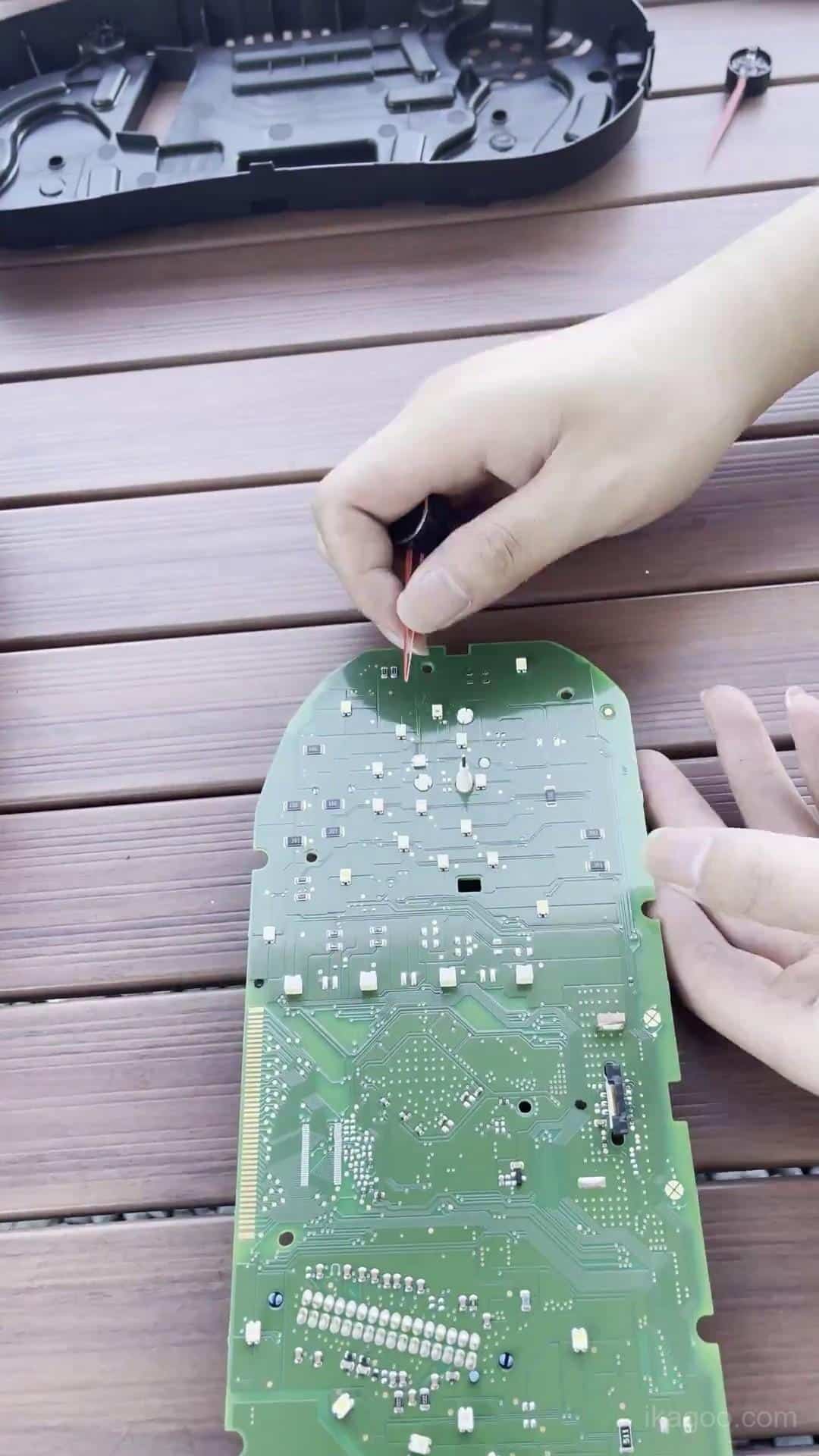
Stap 10. Controleer de behouden originele hardware
Voordat u de nieuwe behuizing sluit, inspecteert u de behouden printplaat, connectoren, kabelroute en originele instrumentzoemer.
Dit is ook het juiste moment om vast te stellen of het originele cluster de kleine hulpprintplaat bevat die hieronder wordt beschreven.
Controleer de kleine hulpprintplaat
Sommige originele mechanische clusters met een hogere specificatie bevatten een kleine hulpprintplaat achter het originele display. Deze is niet aanwezig op elk Lavida-cluster.
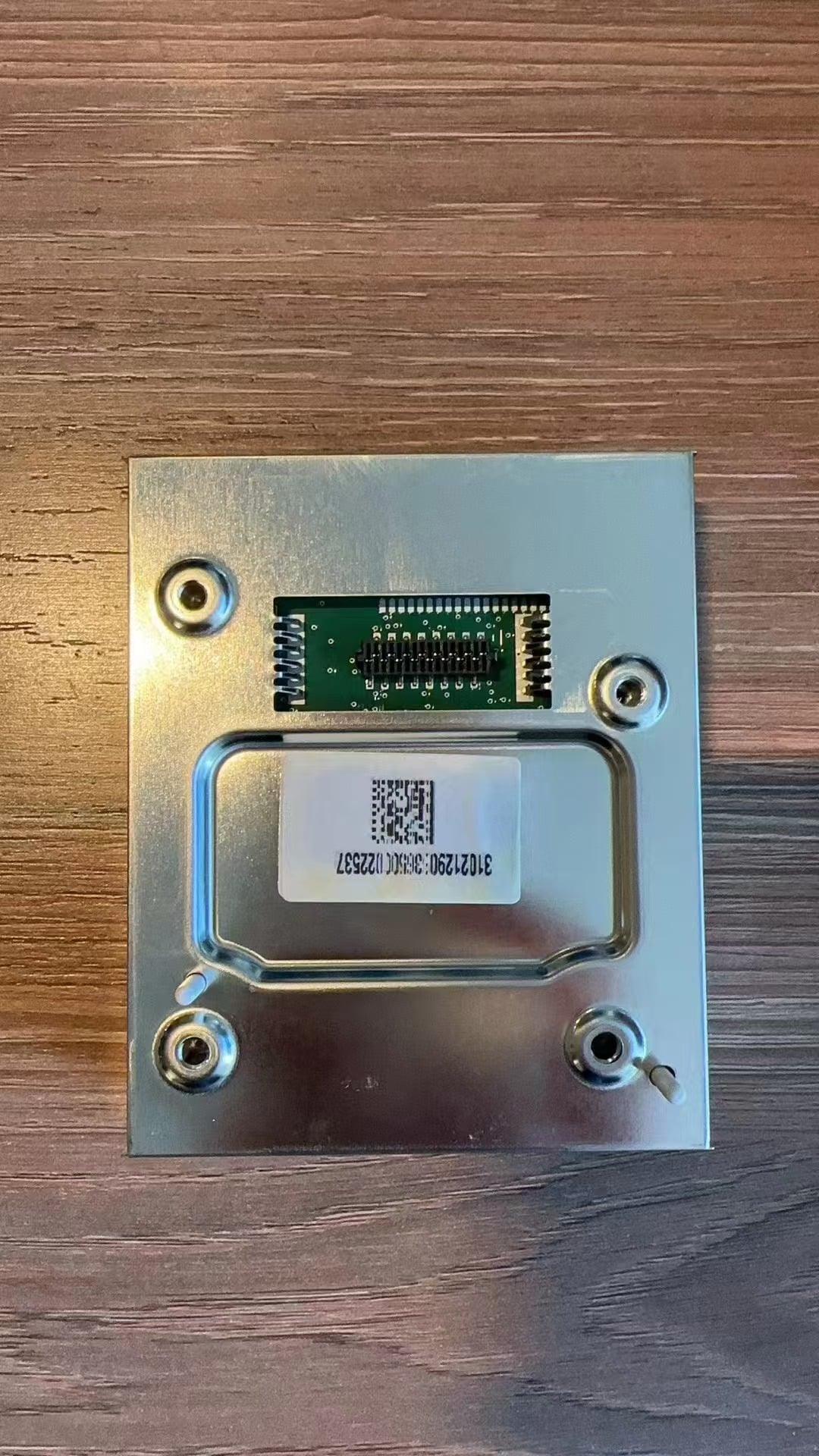
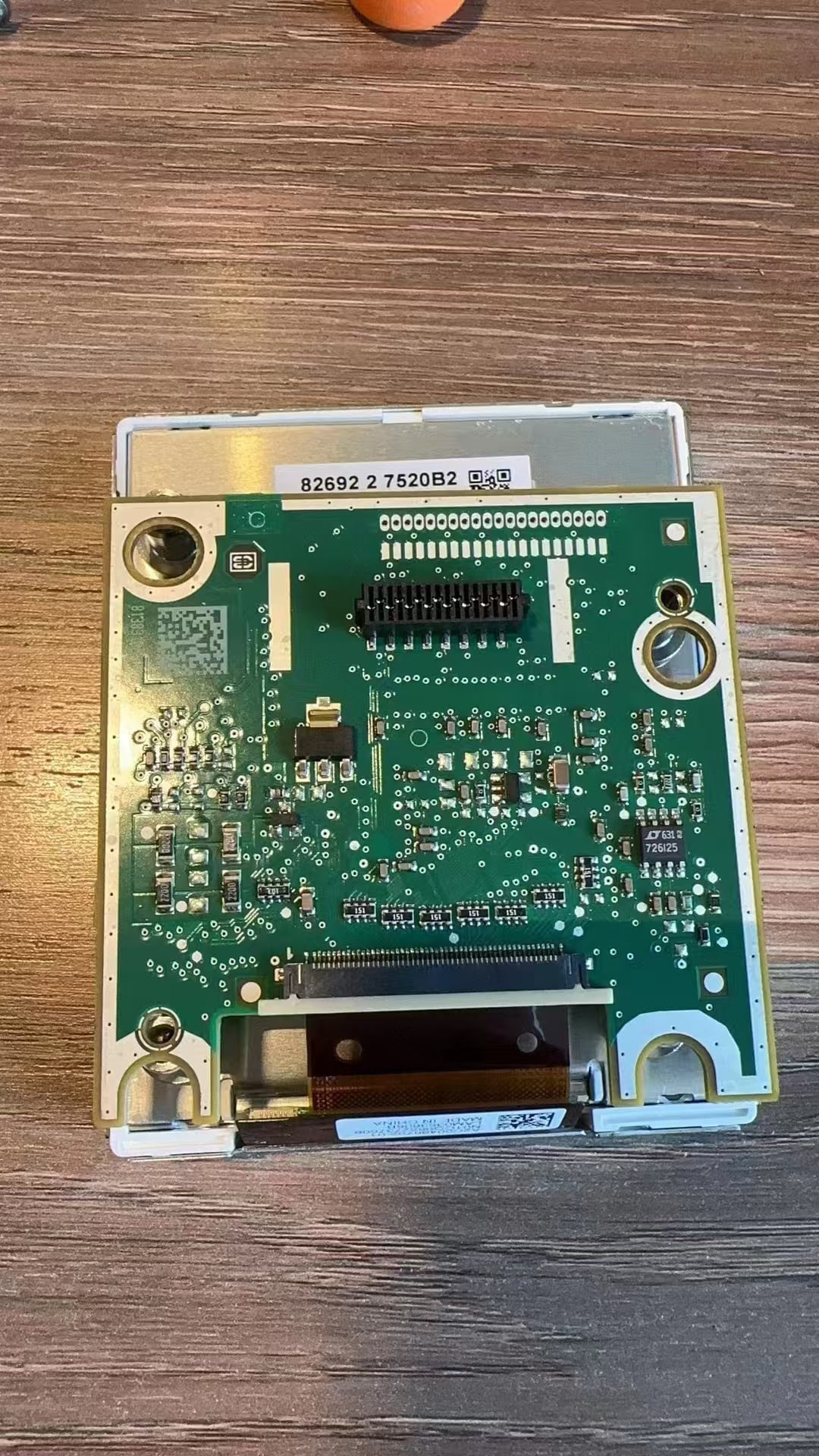
Als het originele cluster deze printplaat bevat, draagt u deze correct over en zet u deze goed vast. Als het originele cluster de printplaat niet bevat, is er geen installatie van een hulpprintplaat nodig.
Kritieke controle: wanneer het originele cluster deze printplaat bevat, kan het weglaten of los laten zitten ervan bijdragen aan brandstofniveau-fouten of instrumentstoringswaarschuwingen.
Uitleg over de hulpprintplaat
Installatiereferentie voor de hulpprintplaat
Herassemblage van het digitale cluster en USB-routering
Nadat de behouden elektronica is gecontroleerd, assembleert u het digitale cluster opnieuw en maakt u het klaar voor installatie terug in het dashboard.
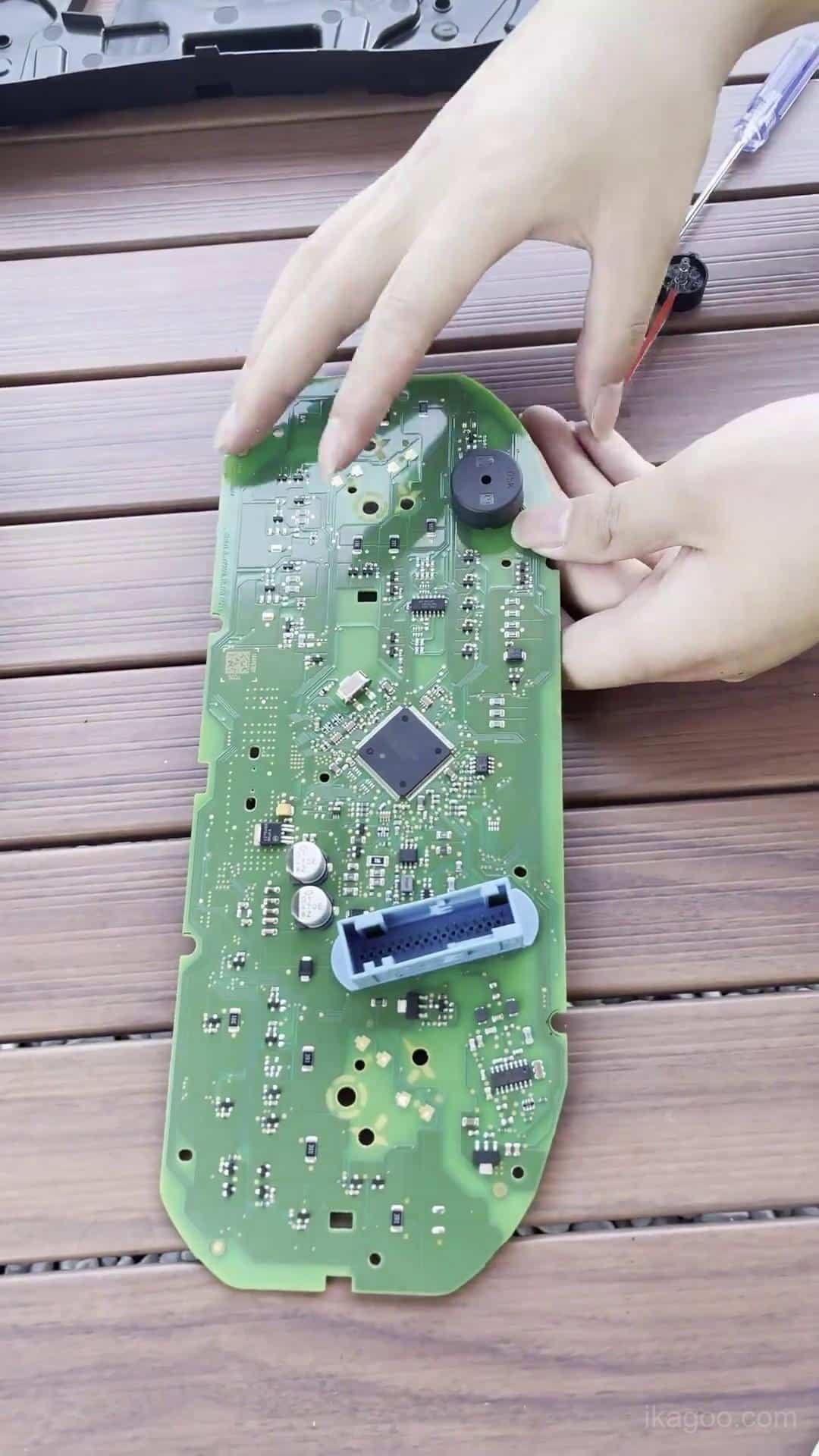
Stap 11. Herassembleer het digitale cluster
Sluit de behuizing gelijkmatig rondom. Oefen alleen druk uit op de structurele randen van de behuizing en nooit direct op het LCD-oppervlak.
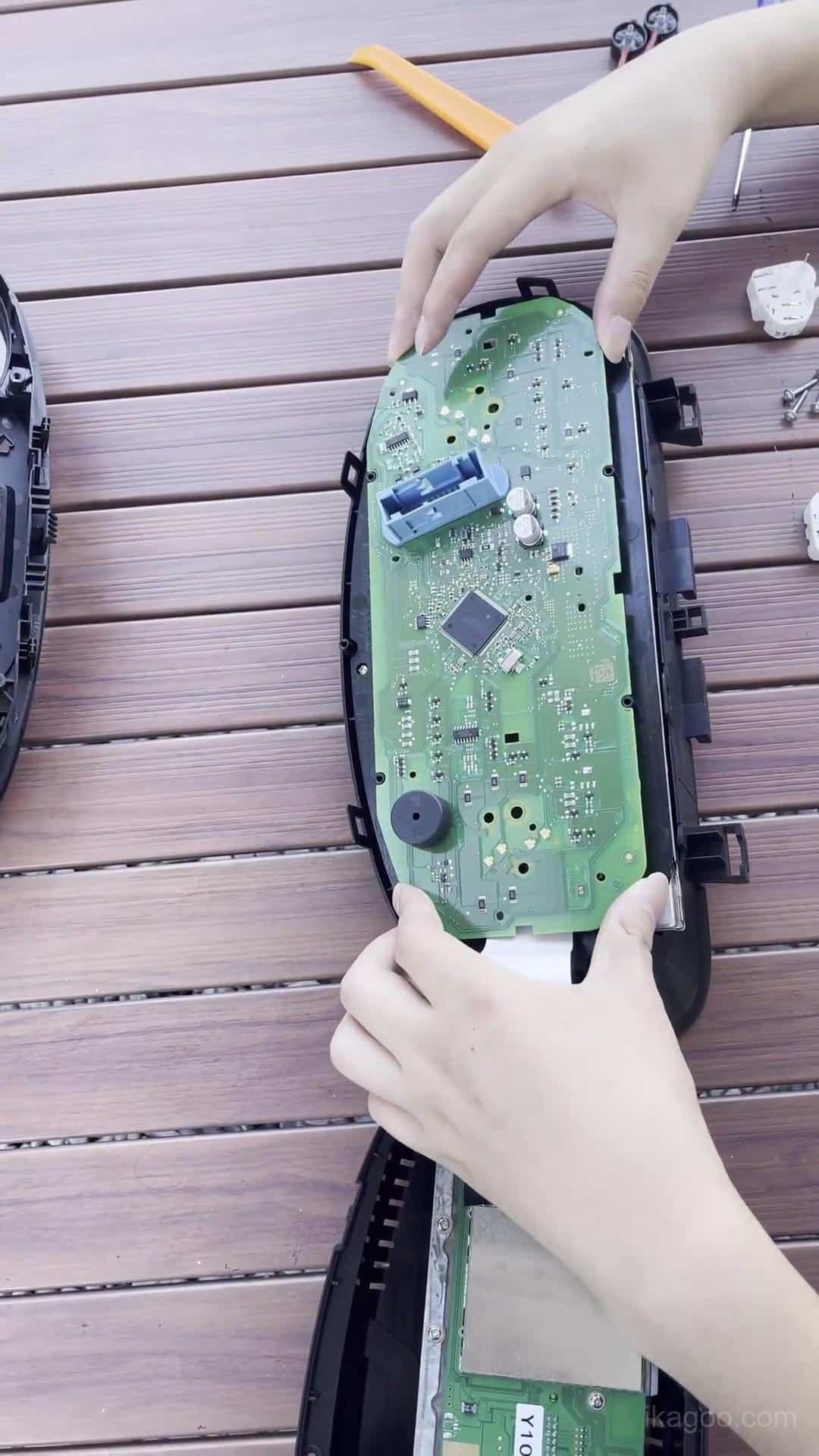
Stap 12. Inspecteer de behuizing van het voltooide cluster
Controleer de volledige naad van de behuizing en verifieer dat de behouden elektronica, zoemer, flatkabels en kabels correct gepositioneerd blijven.
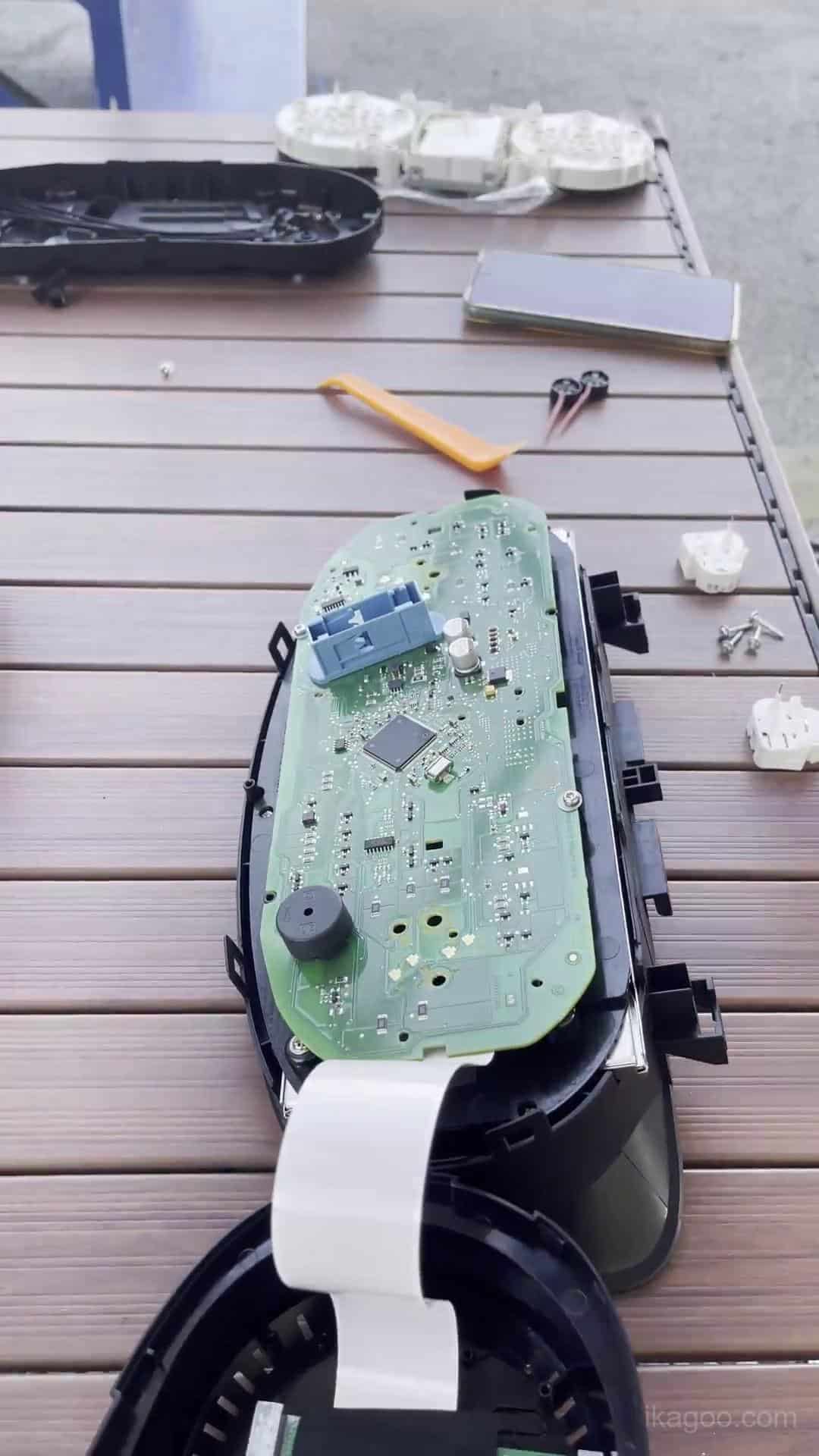
Stap 13. Sluit het digitale cluster opnieuw aan
Sluit de originele voertuigkabelboom volledig opnieuw aan en plaats het geüpgradede cluster in de instrumentopening. Houd de omliggende trim open voor de eerste stroomtest.
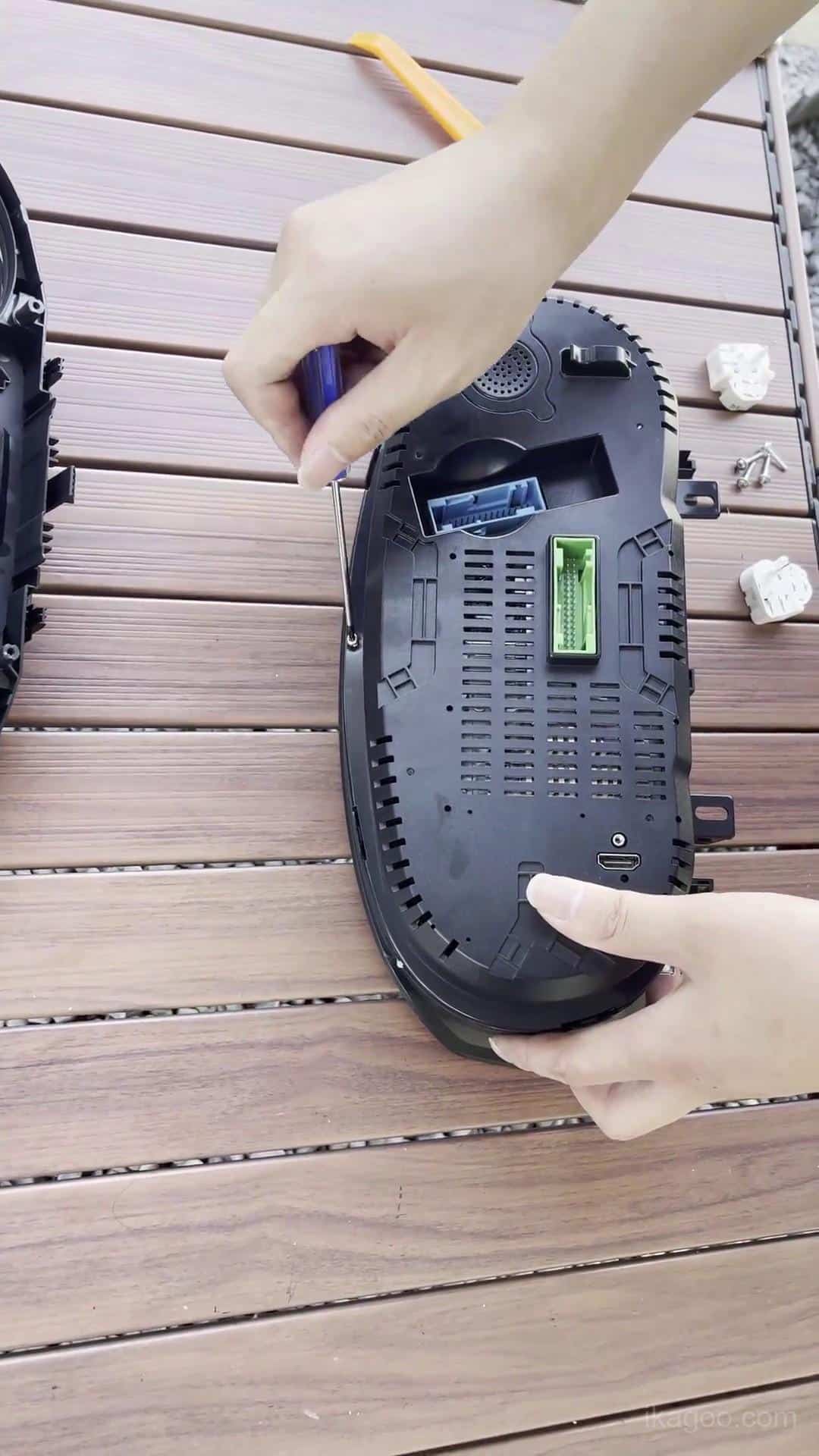
Stap 14. Leid beide USB-kabels
Houd beide USB-kabels bereikbaar nabij het opbergvak linksonder onder het stuurwiel.
Eén kabel is behouden voor bedrade toegang voor software-updates. De andere wordt gebruikt voor bedrade projectie waar ondersteund door de meegeleverde clusterversie.
Eerste keer inschakelen en definitieve dashboardinstallatie
Herinstalleer niet alle dashboardbekleding voordat het cluster de eerste inschakeltest heeft doorstaan.
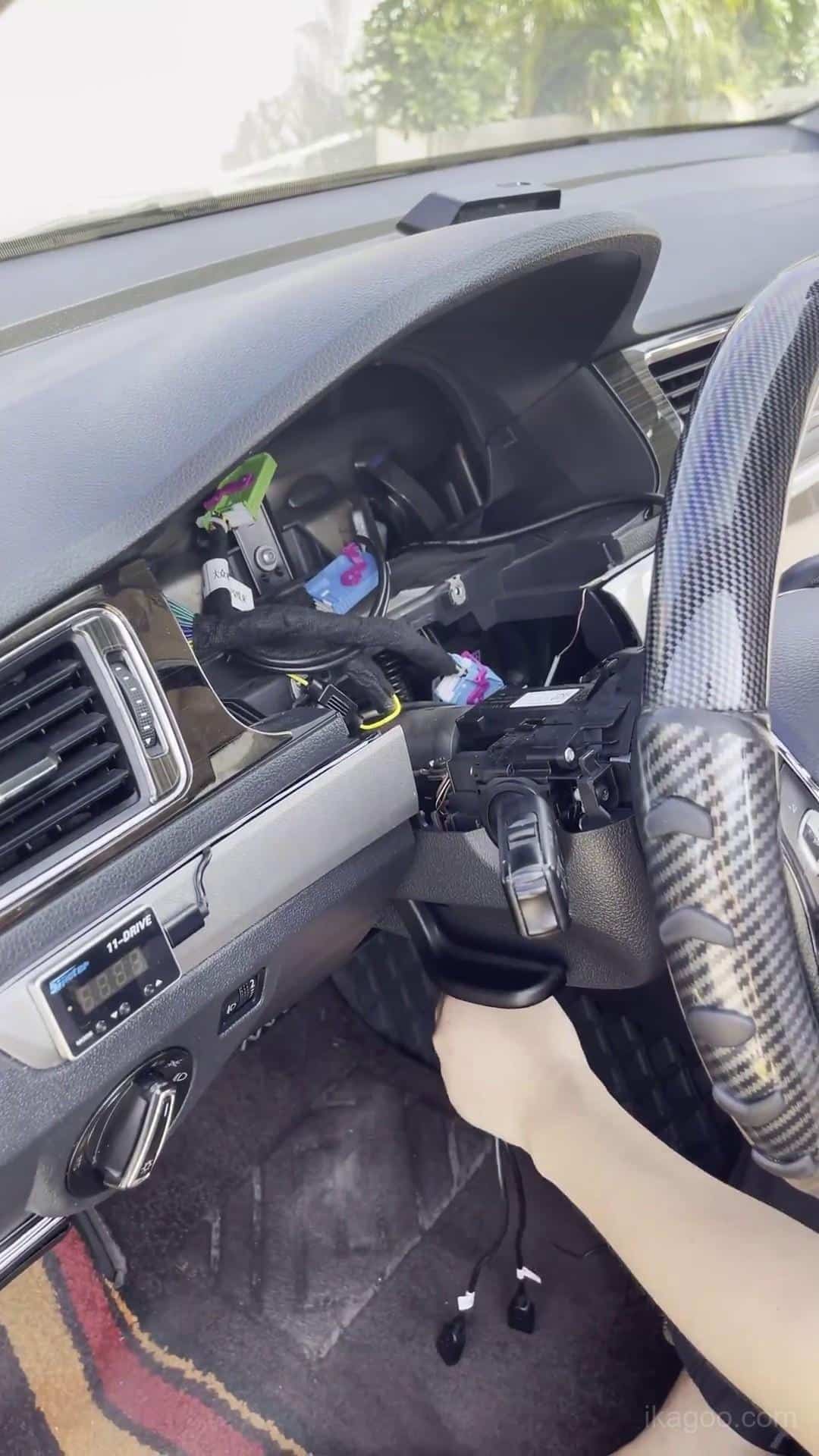
Stap 15. Schakel in en test het digitale cluster
Let op het opstarten, het waarschuwingsgedrag en de hoofdweergave van voertuiggegevens. Inspecteer het LCD op abnormale lijnen, donkere plekken of drukmarceringen.
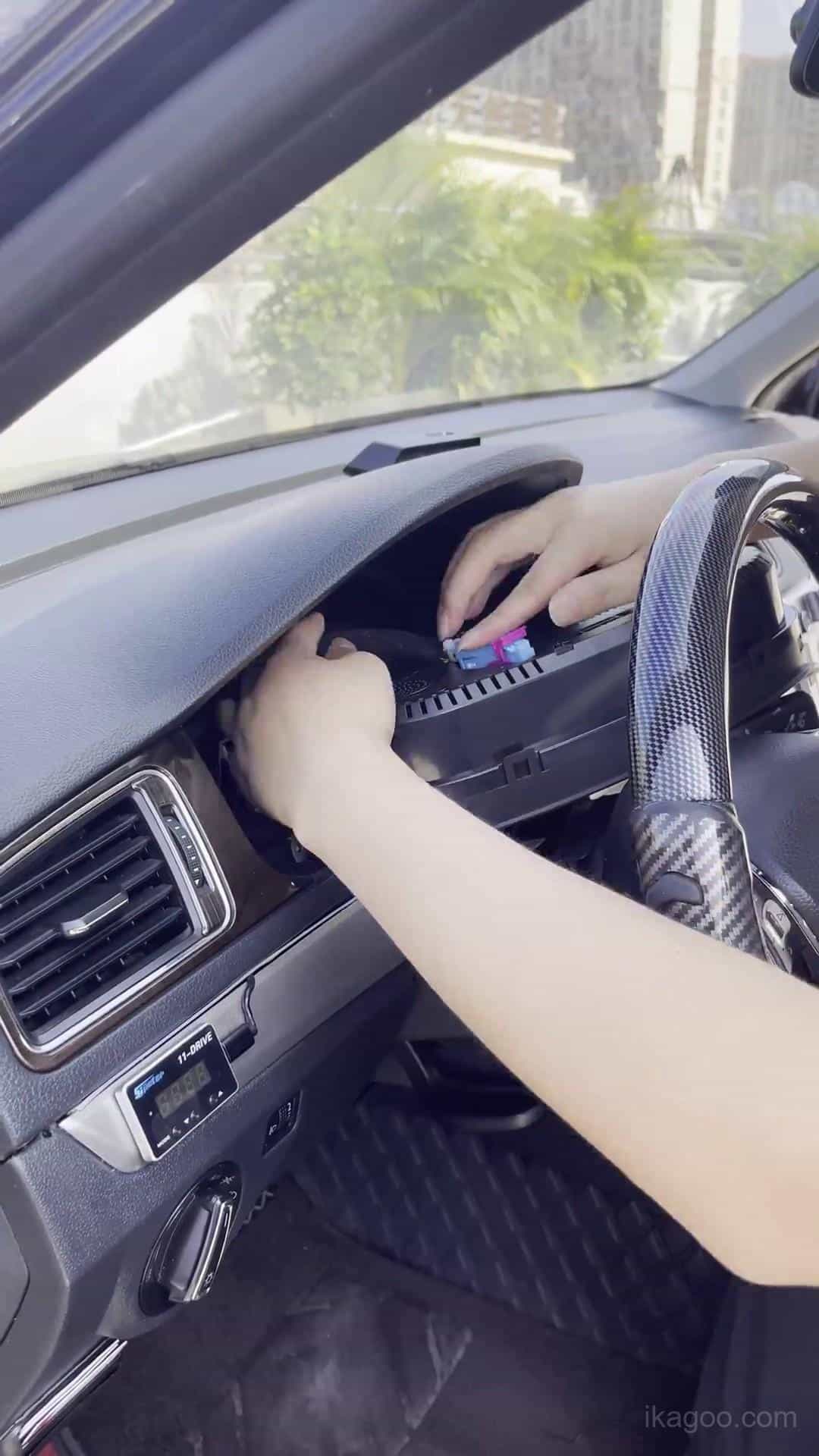
Stap 16. Herinstalleer de omliggende dashboardbekleding
Nadat de eerste inschakeltest is geslaagd, lijnt u de bekleding uit en installeert u deze geleidelijk opnieuw. Als er ongebruikelijke druk nodig is, controleer dan eerst de positie van het cluster en de kabelroutering.
Stap 17. Controleer de definitieve installatie
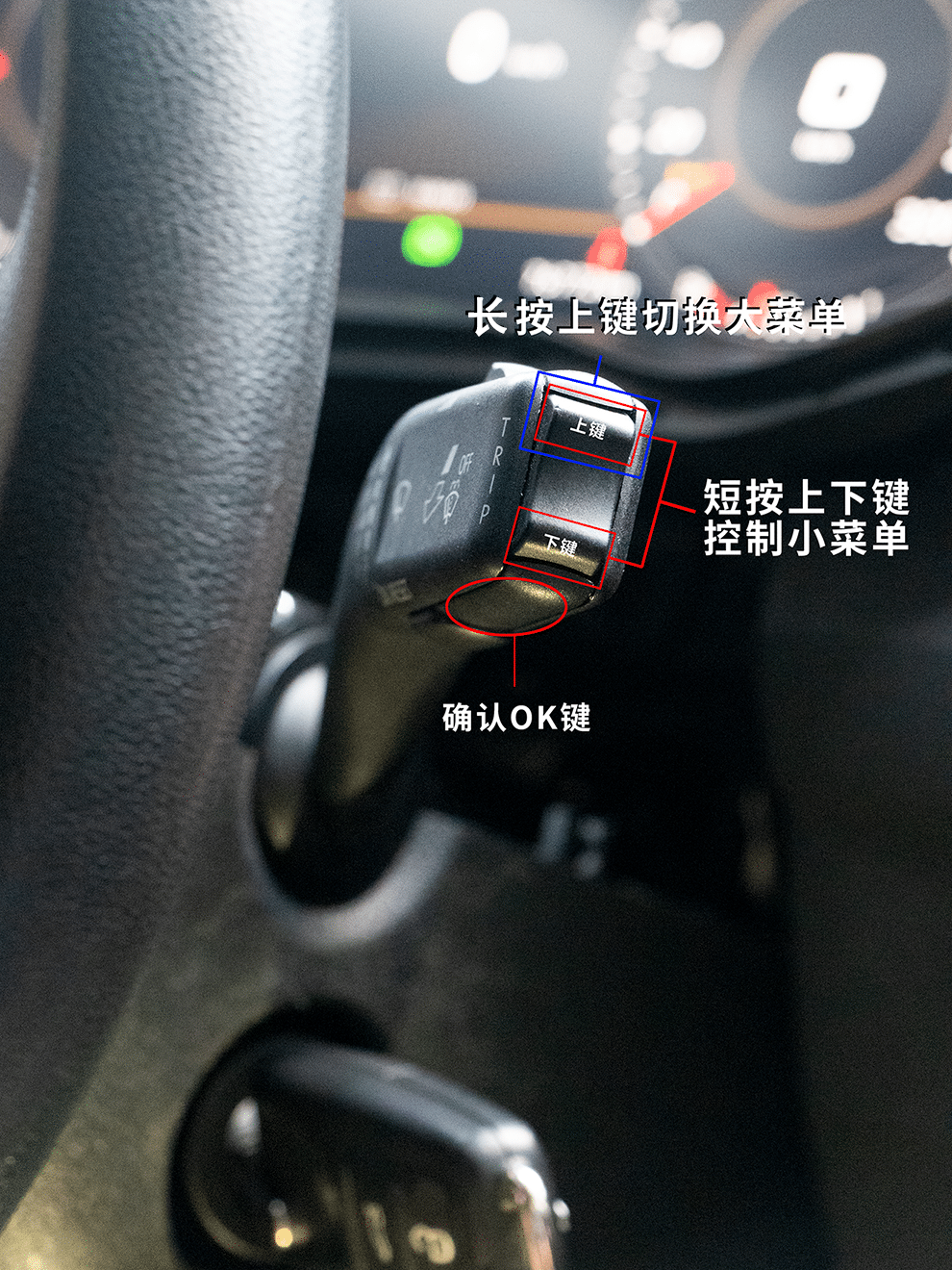
Controleer het voltooide dashboard vanaf de bestuurderspositie. Bevestig een nette passing, normaal opstarten, waarschuwingsindicatoren, brandstofweergave, richtingaanwijzerweergave, menubediening en algemeen gedrag van voertuiginformatie.
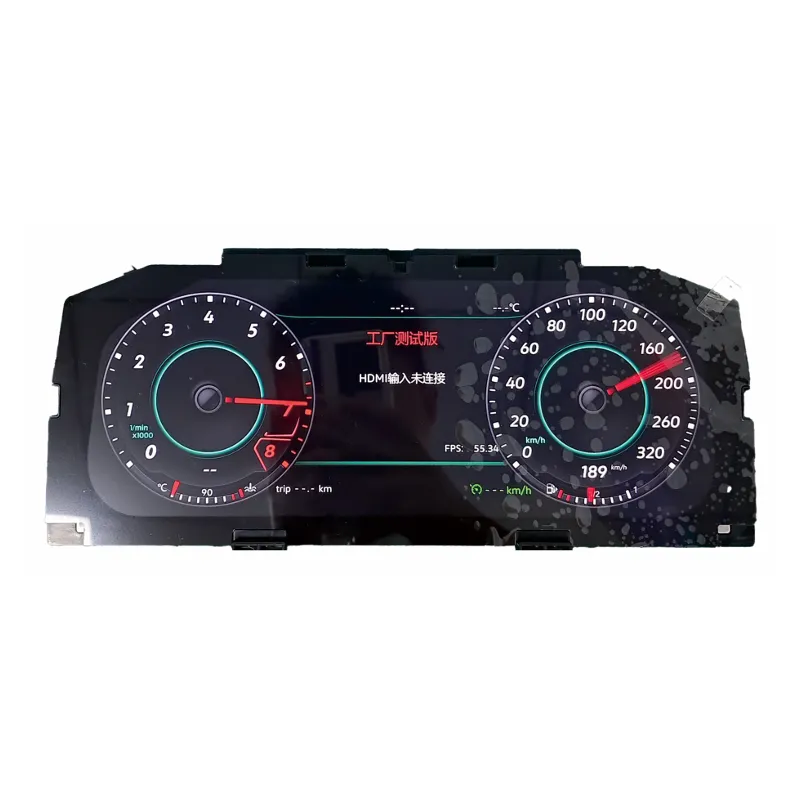
Digitaal cluster voor Volkswagen Lavida 2013-2017
Dit is de iKAGOO digitale-clusterproductroute die hoort bij de hierboven getoonde installatiemethode. Deze is bedoeld voor compatibele Volkswagen-toepassingen met de ondersteunde originele instrumentclusterarchitectuur.
Bestel niet alleen op basis van het bouwjaar. Vóór verzending moeten het originele dashboard en het instrumentencluster worden gecontroleerd tegen de ondersteunde route.
Kalibratie en instellingen na installatie
Kalibratie brandstoftankcapaciteit
Als de brandstofmeter na het tanken niet vol weergeeft: controleer de kalibratie voordat u een hardwareprobleem veronderstelt.
- Vul de brandstoftank volledig.
- Rijd een paar honderd meter.
- Open Rijgegevens → Bijvulbare hoeveelheid.
- Lees de weergegeven bijvulbare hoeveelheid af.
- Open Instellingen → Configuratiekalibratie → Brandstoftankcapaciteit.
- Voer de weergegeven bijvulbare waarde in.
- Na correcte kalibratie moet de bijvulbare waarde terugkeren naar 0.
Fysieke lichtinstelling
Op de betreffende Volkswagen Lavida PQ-route moet Fysiek licht uitgeschakeld blijven. Een onjuiste ingeschakelde status kan het gedrag van de richtingaanwijzerweergave beïnvloeden.
Voertuigmodel selecteren
Als de voertuigafbeelding in het cluster niet overeenkomt met het werkelijke voertuig, gebruik de instelling voor voertuigmodelselectie, kies het juiste model, schakel het voertuig uit en vergrendel het enkele minuten voordat u opnieuw controleert.
Volkswagen Lavida Digitaal Cluster Probleemoplossing
Brandstofmeter toont niet vol
Eerste controle: voltooi de kalibratie van de Brandstoftankcapaciteit met de waarde Herleidbare Hoeveelheid.
Richtingaanwijzerweergave is onjuist
Eerste controle: controleer of Fysiek Licht is uitgeschakeld op de betreffende PQ-route.
Waarschuwing instrumentstoring verschijnt
Eerste controle: controleer de behouden originele zoemer en het hulpboard wanneer het originele cluster er een bevatte.
Verkeerde voertuigafbeelding wordt weergegeven
Eerste controle: selecteer het juiste voertuigmodel, schakel de auto uit en vergrendel deze enkele minuten.
USB-kabel later niet toegankelijk
Eerste controle: beide USB-kabels moeten toegankelijk blijven nabij het opbergvak linksonder.
Digitaal cluster start niet
Eerste controle: inspecteer de originele voertuigconnector en de installatie van het behouden board.
LCD heeft strepen of drukmarceringen
Eerste controle: inspecteer de behuizing en het LCD. Druk tijdens het opnieuw monteren nooit direct op het display.
Cluster zit niet correct
Eerste controle: inspecteer de positie van de behuizing, de USB-routering en het omliggende dashboardpaneel.
Laatste installatiechecklist
Hardware
- Origineel board correct geïnstalleerd
- Originele zoemer behouden
- Hulpboard overgezet indien oorspronkelijk aanwezig
- Geen beknelde lintkabels of kabels
- Geen druk uitgeoefend op het LCD
Voertuigwerking
- Cluster start normaal
- Waarschuwingsindicatoren gecontroleerd
- Brandstofweergave gecontroleerd
- Richtingaanwijzers gecontroleerd
- Menubediening gecontroleerd
Configuratie
- Brandstofkalibratie voltooid indien nodig
- Instelling Fysiek Licht gecontroleerd
- Voertuigafbeelding gecontroleerd
Toekomstige ondersteuning
- Beide USB-kabels toegankelijk
- Software-/versiescherm gefotografeerd
- Definitief geïnstalleerd dashboard gefotografeerd
Aanbevolen: maak een duidelijke foto van het software-/versiescherm na installatie. Dit helpt bij het identificeren van de exact geïnstalleerde versie als een toekomstige update of technische ondersteuning nodig is.
Gerelateerde iKAGOO-bronnen
Volkswagen Digital Cluster Product
Bekijk het product dat hoort bij deze installatieroute.
Bekijk Digital Cluster →VW & Audi Digital Cluster Gebruikershandleiding
Gebruik de handleiding voor bediening, instellingen en ondersteunde begeleiding na installatie.
Open Gebruikershandleiding →Installatiegids-bibliotheek
Blader door extra voertuigspecifieke iKAGOO-installatiehandleidingen.
Blader door installatiegidsen →Hebt u het Digital Cluster nodig dat in deze Lavida-installatie wordt gebruikt?
Stuur uw Volkswagen Lavida 2013-2017 bouwjaar plus duidelijke foto's van het originele dashboard en instrumentencluster, zodat de configuratie vóór verzending kan worden gecontroleerd.
Volkswagen Lavida 2013-2017 Digital Cluster Installatie FAQ
Past het digital cluster op elke Volkswagen Lavida 2013-2017?
Nee. De originele mechanische instrumentencluster en dashboardarchitectuur moeten overeenkomen met de ondersteunde PQ-platform installatieroute.
Vereist de installatie van het Volkswagen Lavida 2013-2017 digital cluster het doorknippen van draden?
Op de ondersteunde installatieroute is geen draadknippen of kabelboom splitsen nodig. Het verwijderen van het dashboard en het overzetten van originele elektronische componenten is nog steeds vereist.
Wat moet er gebeuren voordat de originele Lavida-cluster wordt verwijderd?
Voltooi de voorbereiding van het waarschuwingsmenu terwijl de originele mechanische cluster nog is geïnstalleerd, inclusief de hierboven beschreven winterband- en snelheidslimietwaarschuwingen.
Moet het originele instrumentenbord worden overgezet?
Ja. Vereiste behouden originele elektronica moet correct worden overgezet en geïnstalleerd in het geüpgradede digital cluster.
Heeft elke Volkswagen Lavida het kleine hulpboard?
Nee. Sommige originele clusters met een hogere uitvoering bevatten het. Zet het board alleen over wanneer het aanwezig is in de originele cluster.
Waarom moet de originele instrumentzoemer geïnstalleerd blijven?
De behouden zoemer maakt deel uit van deze ondersteunde installatieroute. Het verwijderen ervan kan bijdragen aan storingsgedrag van het combinatie-instrument.
Waarom zijn er twee USB-kabels?
Eén biedt bedrade toegang voor software-updates. De andere biedt bedrade projectie waar die functie wordt ondersteund door de meegeleverde digital-cluster versie.
Waarom toont de brandstofmeter niet vol na het tanken?
Controleer eerst de kalibratie van de brandstoftankcapaciteit. Lees de waarde 'Bijvulbare hoeveelheid' en gebruik deze in de hierboven beschreven kalibratie-instelling.
Moet Physical Light worden ingeschakeld?
Nee, niet op de relevante PQ-route die in deze handleiding wordt beschreven. Het onjuist inschakelen kan het gedrag van de richtingaanwijzerweergave beïnvloeden.
Wat moet worden gecontroleerd voordat het dashboard wordt gesloten?
Controleer normaal opstarten, waarschuwingsindicatoren, weergave van voertuiggegevens, schermconditie, installatie van de behouden printplaat en stabiliteit van de connector voordat de definitieve afwerking wordt teruggeplaatst.
Welk product wordt aanbevolen voor deze installatie?
Gebruik de iKAGOO VW 12.3-inch Digital Cluster Upgrade route en bevestig het originele dashboard en instrumentencluster voor verzending.







Add comment
Je moet ingelogd zijn op om een reactie te plaatsen.